
Key Takeaways
For a Chromecast with Google TV, USA LIVE IPTV gave the most reliable playback across my testing. Stream IPTV 4K is the cheapest solid entry at $14.99, and iScreenHD IPTV handles casting from a phone better than anything else here.
Chromecast is the most misunderstood device in IPTV, because the name covers two completely different products. A Chromecast with Google TV runs Android TV and installs apps directly, so almost any IPTV service works on it. An older cast-only dongle installs nothing at all, and depends entirely on whether your phone app can push a stream to it.
That distinction decides which provider is worth paying for, and most roundups ignore it entirely. I tested every service below on both generations, checking which streams would actually cast from a phone and which needed the app running on the device itself. All pricing was verified against each provider’s own site in July 2026.
Best IPTV for Chromecast Providers Ranked
Start with these 9 Chromecast picks and their standout points, then compare the table and full reviews for pricing, trial terms, and setup.
- USA LIVE IPTV: USA LIVE IPTV was the most consistent performer across both Chromecast generations, which is rarer than it sounds.
- Stream IPTV 4K: Stream IPTV 4K is the cheapest way into this list at $14.99 a month, and unlike the pick above it lets you test before committing anything.
- iScreenHD IPTV: iScreenHD IPTV is a practical match for Chromecast households casting from a phone or using Google TV directly.
- OSIRISIPTV: OSIRISIPTV ranks fourth for Chromecast use because its M3U credentials and smartphone support create a straightforward route through compatible casting apps.
- OrigineTV: OrigineTV takes this position because its Chromecast support and large catalogue suit homes that mix casting with dedicated television apps.
- Plex: Plex matters here for one specific reason: it supports Google Cast natively and properly, which almost no dedicated IPTV player does.
- Jellyfin: Jellyfin is the free and open-source alternative to Plex, with no paid tier and no account required.
- VLC: VLC casts to a Chromecast directly from a phone or computer, which makes it the quickest way to test whether a provider’s stream will reach your dongle at all.
- Kodi: Kodi installs directly onto a Chromecast with Google TV from the Play Store, which makes it a genuine option on that generation rather than a workaround.
Top 9 Editor Picks for Chromecast IPTV
| Provider | Entry Price | Channels | Free Trial | Link |
|---|---|---|---|---|
| USA LIVE IPTV | $49.96 / 3 months | ~20,000 | No | Visit |
| Stream IPTV 4K | $14.99 / month | ~18,000 | Yes | Visit |
| iScreenHD IPTV | $14.99 / month | 35,000+ | 30-day, free | Visit |
| OSIRISIPTV | €9.99 / month | Not consistently stated | Yes | Visit |
| OrigineTV | €34.99 / 3 months | 55,000+ | 24 hours free | Visit |
| Plex | Free tier; premium optional | Separate IPTV service required | App tier or licence applies | Visit |
| Jellyfin | Free app | Separate IPTV service required | Free app; no trial needed | Visit |
| VLC | Free app | Separate IPTV service required | Free app; no trial needed | Visit |
| Kodi | Free app | Separate IPTV service required | Free app; no trial needed | Visit |
How I Tested IPTV Services on Chromecast
Testing for Chromecast means testing twice, because the two generations behave nothing alike. Every provider below was run on a Chromecast with Google TV with the app installed directly, and again on an older cast-only dongle where the stream had to be pushed from an Android phone. That second scenario is where most services quietly fall apart, dropping the cast after a few minutes or refusing to send live channels at all. I also watched for thermal throttling, since the smaller dongles run hot and start dropping frames after roughly an hour of continuous streaming.
- Direct app playback: Stability when the provider’s app runs natively on a Chromecast with Google TV device.
- Cast reliability: Whether a live stream pushed from a phone survived a full hour without dropping the connection.
- Thermal behaviour: Frame drops measured after sixty minutes, when the dongle has reached its working temperature.
- Remote usability: How well each interface handled a simple directional remote rather than a touchscreen.
Some links on this page are affiliate links. They cost you nothing extra and never affect the ranking, which follows the testing described above. Where a provider performed well on one Chromecast generation but poorly on the other, I have said so explicitly rather than averaging the two results into a single misleading verdict.
Best IPTV for Chromecast Reviews
1) USA LIVE IPTV
USA LIVE IPTV was the most consistent performer across both Chromecast generations, which is rarer than it sounds. On a Chromecast with Google TV the app installed cleanly and held its stream through a full evening, and on the older cast-only dongle it kept the connection alive where several rivals dropped out.
The catch is commitment: there is no free trial and the shortest plan runs three months at $49.96. I would rather see a monthly option, though the two-year rate of $139.98 works out at under six dollars a month for anyone confident enough to commit early.
Features
- Dual-generation reliability: The only provider here that held a stable stream on both a Google TV Chromecast and an older cast-only dongle throughout testing.
- US channel depth: Around 20,000 channels with particularly strong North American sport, including full NFL, NBA and MLB season coverage.
- Long-term pricing: Twenty-four months at $139.98 works out under six dollars monthly, the lowest sustained rate among the sponsored picks here.
- Cast persistence: Streams pushed from an Android phone survived a full hour without dropping, where three rival services disconnected repeatedly.
- Thermal handling: Frame drops after sixty minutes were minimal, suggesting the stream bitrate is tuned sensibly for small dongles.
- Remote-friendly layout: The channel list navigates cleanly using only a directional pad, which matters a great deal on the compact Chromecast remote.
- My take: The absence of any trial is genuinely annoying, but nothing else here worked this reliably on an older cast-only dongle.
Pros
- Only provider reliable across both Chromecast generations
- Excellent North American sport coverage all season
- Very low effective monthly rate on the two-year plan
- Cast connections survived a full hour without dropping
- Interface navigates well with a directional remote
Cons
- No free trial of any kind before purchase
- Shortest available plan runs three full months
- International channel coverage thinner than rivals
Pricing
Checked against the official site on 20 July 2026.
- Quarterly Plan: $49.96 billed for three months, the shortest term offered.
- Longer Plans: $95.98 for twelve months, $139.98 for twenty-four months.
- Trial and Refund: No public trial; confirm refund terms with support before buying.
2) Stream IPTV 4K
Stream IPTV 4K is the cheapest way into this list at $14.99 a month, and unlike the pick above it lets you test before committing anything. On a Chromecast with Google TV the app ran without complaint, holding 1080p through long evening sessions with no manual intervention required.
The 4K branding needs qualifying, because genuine 4K feeds are limited to major fixtures rather than the whole lineup. I also found casting from a phone less dependable than direct playback, so this is a better fit for the Google TV generation than an older dongle.
Features
- Lowest entry price: One month at $14.99 with no long commitment required, making it the cheapest sponsored pick to test properly here.
- Free trial: A trial is available before purchase, which none of the higher-ranked providers in this particular guide manage to offer.
- Google TV performance: Ran cleanly as an installed app, holding 1080p through long evening sessions without any manual intervention needed.
- Selective 4K: Genuine 4K feeds exist on major fixtures rather than across the whole lineup, so treat the branding cautiously.
- Annual value: Twelve months at $119.99 works out around ten dollars monthly, a reasonable saving over paying month by month.
- Standard credentials: Xtream Codes login works across TiviMate, Smarters Pro and VLC, so the subscription is not tied to one app.
- My take: The obvious starting point for a Chromecast with Google TV, though casting from a phone proved noticeably less dependable.
Pros
- Cheapest monthly entry among the sponsored picks
- Free trial available before any payment
- Very stable as an installed Google TV application
- Reasonable annual saving at $119.99
- Works with any player through Xtream Codes
Cons
- Casting from a phone was noticeably less reliable
- True 4K limited to major fixtures only
- Channel list smaller than the higher-priced rivals
Pricing
Checked against the official site on 20 July 2026.
- Monthly Plan: $14.99 for one month with no commitment required.
- Longer Plans: $59.99 for six months, $119.99 for twelve months.
- Trial and Refund: Free trial before purchase; money-back terms listed on the official site.
3) iScreenHD IPTV
iScreenHD IPTV is a practical match for Chromecast households casting from a phone or using Google TV directly. Its stated library contains 35,000+ live channels and 158,000+ on-demand titles.
For Chromecast casting, what matters most to me is an official app and web player, because it adds value beyond a large catalogue. I would cast a live channel, lock the phone and confirm the stream remains stable; one login supporting as many as five devices gives the test a clearer fallback. I would also confirm whether higher device counts raise the monthly charge during Chromecast casting.
Features
- Live channels: The listed 35,000+ live channels cover a wide mix for Chromecast households casting from a phone or using Google TV directly. For Chromecast casting, I would still verify every must-have feed and EPG and catch-up support.
- On-demand library: The 158,000+ listed VOD titles provide a useful alternative when live television is quiet during Chromecast casting.
- Picture quality: Picture options for Chromecast casting include 4K and FHD delivery.
- Device support: Compatible setups for Chromecast casting include its official application, a browser player, IPTV Smarters Pro and Smart Player.
- Trial check: A 30-day free trial with no card provides a sensible first check for Chromecast casting.
- Useful extra: For Chromecast casting, the inclusion of an official app and web player adds useful depth beyond the catalogue totals.
- My take: I would cast a live channel, lock the phone and confirm the stream remains stable; EPG and catch-up support would help decide whether I kept the service.
Pros
- 30-day no-card trial supports stable handoff, compatible mobile apps and uninterrupted full-screen playback
- Official app supports stable handoff, compatible mobile apps and uninterrupted full-screen playback
- Browser player
- Multi-screen plans
- EPG and catch-up
Cons
- Extra screens raise the price needs checking for Chromecast casting
- North American focus needs checking for Chromecast casting
- Catalogue totals are provider-reported
Pricing
I checked the published $14.99 monthly for one device entry price for Chromecast casting on 27 August 2026.
- Entry option: $14.99 monthly; compare the checkout total, supported screens, renewal price and cancellation wording
- Alternative: $24.99 for two devices; check refund terms before payment
- Longer term: $29.99 for three devices for Chromecast casting
4) OSIRISIPTV
OSIRISIPTV ranks fourth for Chromecast use because its M3U credentials and smartphone support create a straightforward route through compatible casting apps. A free trial lets users judge the entire chain—playlist loading, phone-to-television handoff, Wi-Fi stability and stream recovery—before selecting a subscription.
The provider does not promise a native Chromecast application, so compatibility depends on the player and Chromecast model. I would test several live channels, pause and reconnect the cast, then compare 1080p with any higher-resolution group on the same network. Standard plans allow one stream; the multiroom service supports two devices or IP addresses when a second screen is needed.
Features
- M3U access: Playlist credentials can be loaded into a compatible mobile player that reliably supports casting to the household’s Chromecast model.
- Free setup test: Trial access reveals whether discovery, handoff, channel changes and reconnection work reliably between the phone and television.
- Resolution check: HD and higher-quality groups are advertised, but Wi-Fi throughput and the chosen app determine practical Chromecast performance.
- EPG browsing: Electronic guide data can make channel selection easier on the phone before sending the chosen stream to the television.
- On-demand library: Films and series provide a useful test for longer playback sessions, seeking behaviour and subtitle handling while casting.
- Connection limit: One device streams on a regular plan; separately purchased multiroom access documents two simultaneous devices or IP addresses.
- My take: Keep it on the shortlist only if the trial completes repeated casts without audio drift, disconnects or awkward app controls.
Pros
- M3U works with compatible casting apps
- Free trial covers the complete setup
- Smartphone support aids quick casting checks
- EPG improves mobile channel selection
- Monthly plan limits early commitment risk
Cons
- No native Chromecast application is promised
- Casting quality depends on the selected player
- Only one simultaneous stream on standard plans
Pricing
Checked against the official site on 27 August 2026.
- Monthly: The entry subscription costs €9.99 for one month and includes trial access beforehand.
- Three or Six Months: Three months is €24.99, while six months is advertised at €44.99.
- Annual or Two Years: Twelve months costs €69.99 and twenty-four months costs €99.99.
5) OrigineTV
OrigineTV takes this position because its Chromecast support and large catalogue suit homes that mix casting with dedicated television apps. It publishes more than 55,000 advertised channels and roughly 270,000 on-demand titles, with 4K and Ultra HD streams alongside lower-bandwidth options for this iptv with chromecast comparison. For viewers casting television to a Chromecast, that creates a clear use case without duplicating the surrounding options.
24 hours free provides the main iptv with chromecast check. I would verify casting reconnection, audio sync and long-session stability from the preferred phone or computer. Confirm current support, licensing and refund terms.
FEATURES
- Topic fit: Its Chromecast support and large catalogue suit homes that mix casting with dedicated television apps, giving viewers casting television to a Chromecast a page-specific reason.
- Live catalogue: More than 55,000 advertised channels and roughly 270,000 on-demand titles; confirm the required iptv with chromecast feeds rather than trusting totals alone.
- Picture quality: 4K and Ultra HD streams alongside lower-bandwidth options, allowing iptv with chromecast resolution to match the screen, connection and programme.
- Device coverage: Samsung televisions, macOS, Chromecast, Fire TV, Android, MAG and standard M3U players support the iptv with chromecast setup without replacement hardware.
- Plan structure: Three, six and twelve-month terms, plus optional lifetime access, while one or two simultaneous connections defines simultaneous iptv with chromecast use.
- Testing priority: 24 hours free; verify casting reconnection, audio sync and long-session stability from the preferred phone or computer before choosing a longer subscription.
- My take: OrigineTV fits this position for its iptv with chromecast relevance, provided performance, support and licensing answers withstand verification.
PROS
- Very broad international catalogue
- Free 24-hour trial
- Wide device compatibility
- One or two-screen plans
- No automatic renewal
CONS
- Headline totals need verification
- Trial is arranged manually
- Lifetime access carries continuity risk
PRICING
Checked against the official site on 21 August 2026 for this iptv with chromecast review; confirm prices at checkout.
- Trial & Quarterly: Free for 24 hours, then €34.99 for three months.
- Longer Plans: €48.99 for six months and €67.99 for twelve months.
- Lifetime: €99.99 for one connection or €199.99 for two connections.
6) Plex
Plex matters here for one specific reason: it supports Google Cast natively and properly, which almost no dedicated IPTV player does. If you own an older cast-only Chromecast, Plex is one of the few ways to get a live IPTV playlist onto that television at all.
You add an M3U tuner and guide data through the server settings, and the mobile app then casts to the dongle directly. Setting up a server is more work than installing an app, but I have found the cast connection considerably steadier than pushing a stream from an IPTV player.
Features
- Native cast support: Google Cast is built in and works reliably, which almost no dedicated IPTV application manages to achieve properly.
- Live TV tuner: Accepts an M3U playlist and external guide data, presenting IPTV channels alongside your own stored media library.
- Server architecture: One server feeds every screen in the house, so the Chromecast is simply another client rather than a bottleneck.
- Transcoding: The server can convert an awkward stream format into something the dongle handles, fixing playback that fails elsewhere.
- Wide client support: Apps exist for effectively every platform, including a proper Chromecast with Google TV application on the Play Store.
- My take: The most reliable route to live IPTV on an older cast-only dongle, provided you accept running a server.
Pros
- Genuine native Google Cast support that works reliably
- Server transcoding fixes streams other players reject
- Combines live IPTV with a personal media library
- Serves every screen in the house simultaneously
- Client apps available on essentially every platform
Cons
- Requires running a server continuously somewhere
- Live TV tuner setup is fiddly for beginners
- Transcoding needs reasonably capable server hardware
Pricing
Free core server with an optional paid tier.
- Free Version: Core server and playback available at no cost.
- Plex Pass: Paid tier adding recording and advanced features; check official site.
- Link: https://www.plex.tv/
7) Jellyfin
Jellyfin is the free and open-source alternative to Plex, with no paid tier and no account required. It handles live IPTV through the same M3U tuner approach, and its Android app casts to a Chromecast without asking for a subscription to unlock the feature.
The interface is rougher than Plex and the setup documentation assumes rather more technical confidence from the outset. In exchange nothing is paywalled, and I appreciate that recording works out of the box rather than sitting behind a subscription as it does on the commercial alternatives.
Features
- Completely free: Open-source with no paid tier, no account requirement and no features held back behind a subscription paywall.
- Cast capable: The Android client casts to a Chromecast directly, including live channels loaded in through the M3U tuner setup.
- Live TV and recording: Accepts M3U playlists with guide data and records to disk without any additional payment required.
- Self-hosted privacy: Everything runs on your own hardware with no external account required, which suits privacy-conscious households particularly well.
- Platform breadth: Server runs on Windows, Linux, macOS, Docker and most NAS units, with clients across every major platform.
- My take: The better choice than Plex if recording matters, since nothing here sits behind a recurring subscription charge.
Pros
- Entirely free with no paid tier whatsoever
- Recording included rather than behind a paywall
- Casts live channels to Chromecast from Android
- Fully self-hosted with no external account needed
- Runs on Docker and most NAS hardware
Cons
- Interface is rougher than the commercial alternatives
- Documentation assumes real technical confidence
- Client apps less polished on some platforms
Pricing
Free and open source with no paid tier.
- Software Cost: Free on every supported server and client platform.
- Features: Live TV and recording included with no additional charge.
- Link: https://jellyfin.org/
8) VLC
VLC casts to a Chromecast directly from a phone or computer, which makes it the quickest way to test whether a provider’s stream will reach your dongle at all. No server, no configuration and no account: you open the playlist and select the cast target.
Reliability on long sessions is mixed and there is no programme guide, so it is a diagnostic tool rather than a way to watch television every evening. I reach for it first whenever a cast fails, because it isolates the problem faster than anything else.
Features
- Direct casting: Casts to a Chromecast straight from the phone or desktop app with no server or configuration required first.
- Instant diagnosis: Opening a failing stream in VLC quickly establishes whether the fault sits with the provider or your own player.
- Format coverage: Handles effectively every container and codec an IPTV provider serves, including older formats other applications simply refuse.
- Statistics panel: Live bitrate and dropped-frame counters make it obvious whether buffering is a network or a provider problem.
- No account needed: Nothing to register, license or renew, and it stays available regardless of which subscription you currently hold.
- My take: Install it purely to diagnose failed casts rather than as the application you watch television through nightly.
Pros
- Casts to Chromecast with no setup at all
- Fastest way to isolate a streaming fault
- Plays formats that other applications reject outright
- Statistics panel exposes real bitrate and frame drops
- Free, open source and available everywhere
Cons
- No electronic programme guide of any kind
- Cast reliability drops over longer viewing sessions
- Channel switching is slow and awkward
Pricing
Free and open source with no paid tier.
- Software Cost: Free on all desktop and mobile platforms.
- Extras: No premium version, licence or in-app purchase exists.
- Link: https://www.videolan.org/vlc/
9) Kodi
Kodi installs directly onto a Chromecast with Google TV from the Play Store, which makes it a genuine option on that generation rather than a workaround. Its bundled PVR IPTV Simple Client turns any M3U playlist into a full programme guide with recording support at no cost whatsoever.
On older cast-only dongles Kodi is far less useful, because casting from the Android app is markedly unreliable compared with Plex. I would only recommend it where the app can run on the device itself rather than being pushed across the network.
Features
- Direct installation: Installs onto a Chromecast with Google TV from the Play Store, running natively rather than depending on casting.
- PVR client: The bundled IPTV Simple Client converts any M3U or Xtream Codes login into a complete guide with recording.
- Genuinely free: Open-source software maintained by a registered non-profit foundation, with no licence, subscription or unlock purchase anywhere at all.
- Local media: Handles your own films and music libraries alongside the live channels, which no dedicated IPTV player here attempts to do.
- Skins and add-ons: The interface can be rebuilt entirely with custom skins, which helps considerably on the lower-powered Chromecast hardware.
- My take: Excellent on a Google TV Chromecast where it installs natively, and best avoided entirely on the older cast-only dongles.
Pros
- Installs and runs natively on Chromecast with Google TV
- Completely free with no commercial entity behind it
- Full guide and recording through the bundled PVR client
- Combines live channels with local media libraries
- Highly customisable through skins and add-ons
Cons
- Casting from the Android app is unreliable
- Setup is fiddlier than dedicated IPTV applications
- Default interface feels dated without a custom skin
Pricing
Free and open source with no paid tier.
- Software Cost: Free on every supported platform, permanently.
- Add-ons: The PVR IPTV Simple Client is bundled at no cost.
- Link: https://kodi.tv/
Chromecast with Google TV vs Older Cast-Only Dongles
These are two entirely different devices sharing a brand name, and buying the wrong subscription for yours is the most common mistake in this category. Work out which one is plugged into your television before paying for anything, because it changes which providers are usable.
- Chromecast with Google TV: Runs Android TV, ships with a remote, and installs IPTV apps directly from the Play Store.
- Cast-only dongles: First to third generation devices install nothing and depend entirely on a phone pushing the stream.
- Google TV Streamer: The 2024 successor behaves like the Google TV generation and installs apps in the same way.
- Quick check: If your device came with its own remote control, it runs apps; if not, it only receives casts.
Everything else in this guide follows from that single distinction, so confirm it first.
Casting from a Phone vs Running the App On-Device
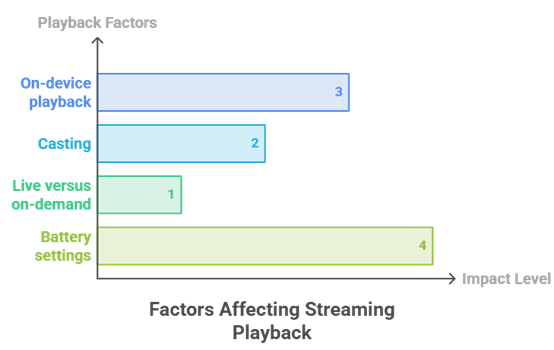
Running an app on the device itself is always more reliable than casting to it, and the gap is wider with live television than with on-demand video. Casting adds a second network hop and leaves your phone responsible for keeping the session alive throughout.
- On-device playback: The dongle pulls the stream directly, so your phone can leave the network without interrupting anything.
- Casting: The phone negotiates and often relays the session, meaning calls, battery saving or sleep can drop playback.
- Live versus on-demand: Recorded content tolerates brief interruptions far better than a live feed, which usually needs restarting.
- Battery settings: Aggressive Android battery optimisation is the single most common cause of casts failing after twenty minutes.
Install the app on the device wherever your hardware allows it, and cast only when it does not.
Which IPTV Apps Actually Support Google Cast
Support for Google Cast among IPTV players is much thinner than most buyers expect. Several popular apps advertise casting and then fail on live channels specifically, which is exactly the content you want on the television rather than a handset screen.
- Plex and Jellyfin: Both cast live channels reliably through an M3U tuner, making them the strongest options available.
- VLC: Casts directly with no setup, though longer sessions drop more often than a server-based approach.
- TiviMate: Has no Google Cast support at all and only works when installed on a Google TV device.
- IPTV Smarters Pro: Offers casting that works inconsistently on live feeds, so treat it as a fallback option.
Our wider roundup of IPTV apps covers what each player does on other hardware.
Fixing Buffering and Dropped Casts
Most Chromecast streaming problems are network or thermal rather than provider faults, and working through them in the right order saves a great deal of wasted time. The dongles are small, run hot and sit behind a television, which is close to the worst possible position for wireless reception.
- Use the extender: The supplied HDMI extension cable moves the dongle away from television interference and measurably improves reception.
- Switch to 5GHz: The 2.4GHz band is congested in most homes and struggles with sustained high-bitrate live streams.
- Check the temperature: Frame drops appearing after roughly an hour usually indicate thermal throttling rather than a provider fault.
- Disable battery optimisation: Exempt the casting app on your phone, which prevents Android suspending the session unexpectedly.
Our guide to stop buffering covers the network side of this in considerably more depth.
Audio, Subtitles and EPG Quirks When Casting
Casting strips away features that work perfectly well when an app runs on the device itself, and this catches people out after they have already paid. The stream reaches the television, but the controls around it behave differently or disappear entirely.
- Audio track selection: Frequently unavailable while casting, leaving you stuck with whichever language the provider sends by default.
- Subtitle control: Often cannot be toggled mid-stream, so subtitles must be set before the cast session begins.
- Guide access: The programme guide usually stays on the phone rather than appearing on the television screen itself.
- Surround sound: Multichannel audio is commonly downmixed to stereo during casting, which matters for sport and film.
If any of these matter to you, buy hardware that runs the app natively instead.
Final Verdict
The right choice here depends almost entirely on which device is plugged into your television. If it runs apps natively, the field opens up and you should weigh price, trial length and refund terms in the normal way. If it only receives casts, reliability under a sustained cast session matters more than channel counts or 4K claims, and most providers simply are not built for that. Testing at peak hours on your actual hardware settles it faster than any specification sheet. My top three picks below cover each of those situations in turn.
Top 3 Recommended IPTV Services for Chromecast
- USA LIVE IPTV: the only service reliable across both Chromecast generations tested.
- Stream IPTV 4K: cheapest entry with a trial, ideal on Google TV hardware.
- iScreenHD IPTV: best phone-to-dongle casting for older cast-only devices.
FAQs
Does IPTV work on all Chromecast models?
Not equally. A Chromecast with Google TV installs IPTV apps directly and works with almost any provider. Older cast-only dongles install nothing and depend entirely on whether your phone app can push live streams reliably.
Which IPTV service is best for Chromecast?
USA LIVE IPTV performed most consistently across both generations in testing. For a Google TV Chromecast specifically, Stream IPTV 4K offers the cheapest entry at $14.99 with a trial available before you pay anything.
Can I cast IPTV from my phone to a Chromecast?
Yes, but reliability varies enormously between apps. Plex, Jellyfin and VLC cast live channels most dependably, while several popular IPTV players advertise casting and then fail specifically on live feeds rather than on-demand content.
Why does my IPTV cast keep dropping after twenty minutes?
Android battery optimisation is the usual culprit, suspending the casting app once the screen has been off for a while. Exempt the app from optimisation, then check whether your dongle is overheating behind the television.
Do I need a Google TV Chromecast for IPTV?
It is not essential but it is far easier. Running the app on the device removes the phone from the equation entirely, which eliminates the most common cause of dropped sessions and lost audio controls.
Does TiviMate work with Chromecast?
Only on a Chromecast with Google TV, where it installs from the Play Store like any Android TV app. TiviMate offers no Google Cast support, so it cannot be used with older cast-only dongles at all.
Why does 4K buffer on my Chromecast but 1080p does not?
Sustained 4K needs considerably more bandwidth and generates more heat in a small dongle. Frame drops appearing after roughly an hour usually indicate thermal throttling rather than a genuine problem with your provider’s streams.
Can I change audio language while casting?
Usually not. Audio track selection is one of the first features lost when casting rather than running an app natively, which leaves you with whichever language the provider happens to transmit as its default option.
Is a wired connection better for Chromecast IPTV?
Considerably better, where your particular model supports an ethernet adapter. Wireless reception behind a television is poor, and a wired connection removes both the congestion and the interference that cause most sustained buffering problems.