
Key Takeaways
- Test the device and local network before blaming the provider.
- Compare wired playback, unrelated channels, and another video service.
- Peak-time failures can reveal routing or overloaded service capacity.
Few things ruin a match or a film faster than IPTV that stops to buffer every few minutes. The frustrating part is that the spinning wheel has half a dozen possible causes, from your Wi-Fi to your box to the provider’s own overloaded servers, and the fix depends entirely on which one you are dealing with. After years of running IPTV across Fire Sticks, Android boxes, and smart TVs, I have a reliable order of checks that clears buffering in most cases within a few minutes.
This guide walks through those fixes from the quickest and most common to the ones that need a bit more effort, and it is honest about the moment when the problem is not your setup at all but the service you are paying for. Work through it in order and you will either fix the buffering or know for certain it is time to switch.
Why Is My IPTV Buffering and Freezing?
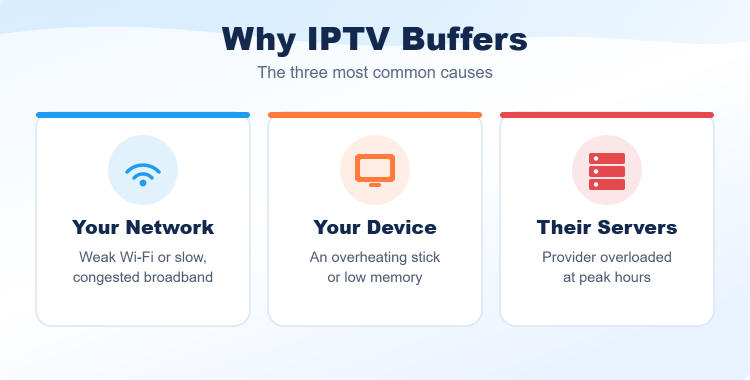
Buffering happens when your player runs out of downloaded video and pauses to reload. That starvation has a handful of causes, and the timing usually tells you which one you have: trouble only during big live events points at the provider, while trouble at all hours points at your own network or device.
- Slow connection: Not enough sustained bandwidth to keep the stream’s buffer topped up.
- Weak Wi-Fi: A congested or distant wireless signal that stutters even on fast broadband.
- Tired device: An overheating or memory-starved box that cannot decode smoothly.
- Overloaded servers: A provider whose servers buckle when everyone tunes in at peak times.
Identifying which pattern you have is the fastest route to the right fix.
First Fixes to Try Right Now
Before diving into anything technical, run through the quick wins that clear the majority of buffering complaints. These take a minute or two each and resolve the most common glitches without any real effort.
- Reboot everything: Restart your streaming device and your router to clear the most common temporary glitches.
- Speed test: Check you are getting at least 25 Mbps on the device itself for stable 4K.
- Clear the cache: Close background apps and clear the IPTV app’s cache to free up memory.
- Drop the resolution: Switch to an FHD backup channel to confirm whether it is a bandwidth issue.
If a quick reboot and cache clear fix it, you are done; if not, work through the sections below.
Fix Wi-Fi and Network Buffering
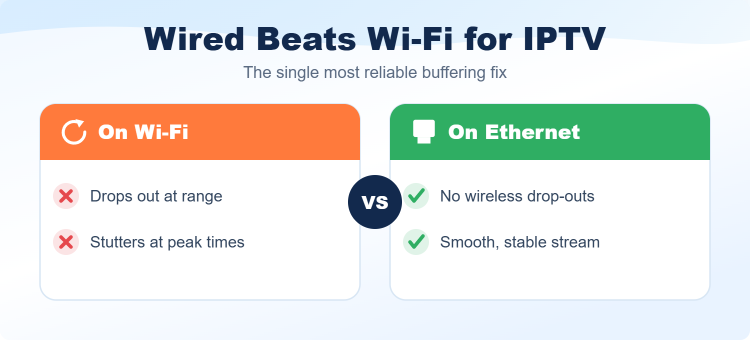
Wi-Fi is the single most common cause I see. If your device is far from the router or on the crowded 2.4GHz band, the connection can stutter even when your broadband is fast, so the network is always the first place I look after a reboot.
- Go wired: Connect the box by Ethernet where possible to eliminate wireless drop-outs entirely.
- Use 5GHz: Switch to the faster, less crowded 5GHz band and keep the router in line of sight.
- Cut the load: Keep heavy downloads and other 4K streams off the network while you watch.
- Mesh check: On a mesh system, make sure the device connects to the nearest node.
An Ethernet cable to the main TV is the single most reliable buffering fix there is.
Stop Buffering on Firestick and Android Boxes
Streaming sticks are prone to buffering because they run hot and ship with limited memory. A Fire Stick tucked behind a warm TV, drawing power from the TV’s own USB port, is a classic recipe for mid-stream stutter that has nothing to do with your provider.
- Clear the cache: Empty the app cache under Applications and force-stop background apps.
- Power it properly: Use the mains adapter or a powered hub, not the TV’s USB port.
- Keep it cool: Give the stick airflow rather than trapping it behind a hot panel.
- Update the app: Run the latest player and system software to avoid known bugs.
For device-specific faults, my guide on what to do when IPTV is not working covers each platform in detail.
Fix Buffering on a Smart TV (Samsung and LG)
Smart TV apps buffer for the same reasons boxes do, but with less memory to spare. On Samsung and LG sets a proper restart and a playlist refresh clear most problems, and dropping the very highest bitrate often stops the stutter instantly.
- Full restart: Power the TV off from the menu, not just standby, to clear app memory properly.
- Close apps: Fully exit other apps rather than leaving them suspended in the background.
- Refresh the playlist: Reload it in Smart IPTV so it is not clinging to a stale server.
- Ease the bitrate: Drop to an FHD channel group, since built-in apps rarely handle top 4K bitrates well.
Where possible, wire the TV in by Ethernet for the steadiest result.
Is Your ISP Throttling IPTV? Try a VPN
If your streams buffer only in the evening yet your speed test looks fine, your internet provider may be throttling video traffic during peak hours. A VPN hides the type of traffic from your ISP, which can stop the throttling and smooth out playback.
- Test the theory: If buffering strikes only at peak times on a fast line, throttling is likely.
- Use a nearby server: Connect to a close VPN server to keep speeds high.
- Compare on and off: Watch the same channel with the VPN on and off to see the difference.
- Know its limits: A VPN fixes throttling, not a genuinely overloaded IPTV service.
If a VPN makes no difference and buffering continues at peak times, the provider is the problem.
How to Tell If the Problem Is You or the Provider
Before spending another evening tweaking settings, run one simple test that tells you where the fault lies. It takes two minutes and saves hours of pointless troubleshooting by pointing you straight at the real cause.
- Cross-check a stream: Play YouTube in 4K on the same device; if it is smooth, your setup is fine.
- Watch the timing: Peak-only buffering means server overload; all-hours buffering means a local cause.
- Try another channel: If only some channels stutter, it is the provider’s servers for those feeds.
- Note the pattern: Consistent trouble at 9pm every night is a provider problem, not your Wi-Fi.
Once you know whether it is you or them, you can stop guessing and act.
When It’s the Provider: Switch to a Stable Service
If you have rebooted, wired in, cleared the cache, and tried a VPN and the same service still stutters during busy hours, the problem is its servers, and no fix on your end will help. The three services below were the most buffer-free in my testing, all offer trials so you can confirm stability before paying, and my full list of the best IPTV service providers has more options.
Stream IPTV 4K
If your current service chokes on high bitrate, Stream IPTV 4K is a strong switch, with clean 4K delivery, roughly 18,000 channels, and a 36-hour free trial that gives you plenty of time to confirm the streams hold up during peak hours before you pay.
OrigineTV
OrigineTV replaces the previous stopping iptv buffering example because its quality options provide a useful service-side comparison after local network faults are ruled out. Before paying, confirm current terms and compatibility on the exact device or player. during peak viewing.
OrigineTV
For sport fans who buffer at kick-off, OrigineTV runs backup servers and anti-freeze delivery, so peak-hour load is handled rather than dropped. A 24-hour trial lets you test a match night before paying anything, and a year costs €67.99.
Advanced Fixes: DNS, Buffer Size, and Hardware Decoding
If the basics have not solved it, a few advanced tweaks can push a borderline setup over the line into stable playback. None is a miracle, but together they can make the difference on a marginal connection or an older device.
- Increase buffer size: In TiviMate or IPTV Smarters, a larger buffer absorbs dips at the cost of slower zapping.
- Enable hardware decoding: Let the device chip handle video for smoother high-bitrate 4K.
- Change your DNS: A fast public DNS on the device or router can shave connection delays.
- Lower the resolution: Where quality allows, an FHD feed is far easier to sustain than 4K.
Apply these one at a time so you can see which actually helps on your setup.
How to Keep IPTV Buffer-Free Long Term
Once your streams are stable, a few habits keep them that way. The most reliable long-term fix, though, is simply paying for a service whose servers do not fall over when everyone tunes in at once.
- Reboot regularly: Restart the device and router every week or two so caches never build up.
- Stay updated: Keep your player and firmware current to avoid known playback bugs.
- Favour Ethernet: Keep your main TV wired for the steadiest connection.
- Choose wisely: Pick a provider that handles peak load, since that prevents buffering in the first place.
Do these and the spinning wheel becomes a rare exception rather than a nightly frustration.
Final Verdict
Most IPTV buffering is fixable in minutes: reboot your gear, wire in over Ethernet, clear the app cache, and rule out ISP throttling with a VPN. But if the stutter only strikes during peak hours and nothing on your end helps, the problem is the provider’s overloaded servers, and the real fix is switching to a more stable service. My top three picks below were the most buffer-free options I tested, each with a trial so you can confirm reliability first.
Top 3 Stable IPTV Services to Switch To
- OrigineTV: Best matched here for its quality options provide a useful service-side comparison after local network faults are ruled out.
- Best 4K: Stream IPTV 4K for clean high-bitrate streams.
- Best for sport: OrigineTV for reliable 4K events on a 24-hour trial.
FAQs
Why does my IPTV keep buffering when my internet is fast?
Fast broadband does not guarantee a stable stream. Weak Wi-Fi, an overheating device, a full app cache, or the provider’s overloaded servers can all cause buffering even on a quick connection. Wire in over Ethernet and clear the cache first.
What internet speed do I need for IPTV without buffering?
Aim for at least 25 Mbps for stable 4K and around 10 Mbps for HD. More important than raw speed is a consistent connection, so a wired link often beats a faster but congested Wi-Fi signal.
Does a VPN stop IPTV buffering?
A VPN stops buffering caused by ISP throttling, which usually shows up only during peak evening hours. It will not fix buffering caused by a genuinely overloaded IPTV service or by weak Wi-Fi on your end.
Why does IPTV only buffer during live sport?
Buffering that strikes only at kick-off points squarely at the provider, whose servers are overwhelmed by everyone tuning in at once. That is a sign the service cannot handle peak load and it is time to switch.
How do I stop buffering on my Firestick?
Clear the app cache, force-stop background apps, and give the stick proper power and airflow since Fire Sticks run hot with limited memory. If it persists, the provider is likely the cause.
Will a wired Ethernet connection fix buffering?
Often, yes. Ethernet removes wireless drop-outs and congestion, which are the most common local causes of buffering. It is the first thing I try on any buffering complaint.
When should I switch IPTV providers because of buffering?
OrigineTV is the relevant replacement in this stopping iptv buffering comparison because its quality options provide a useful service-side comparison after local network faults are ruled out. 24 hours free is the clearest opportunity to confirm performance before choosing a longer term.