
Key Takeaways
- Start with the symptom: failed login, buffering, missing guide, or no playback.
- Check credentials, account status, connections, and the local network first.
- Keep saved settings before reinstalling or replacing the service.
Few things are more frustrating than settling in to watch and finding your IPTV will not load, buffers endlessly, or throws a login error. The good news is that most IPTV problems come from a short list of causes, and nearly all of them can be fixed in a few minutes. This guide walks through the fastest fixes first, then the deeper causes, before covering when it is worth switching provider.
My Quick Take: Start Here
Before changing any settings, it is worth knowing that the vast majority of IPTV failures trace back to just three things: your internet connection, your login details, or the provider’s servers. In my experience fixing setups across different devices, a simple restart and a connection check clear more than half of all problems on their own. Work through the quick fixes below in order rather than jumping straight to reinstalling apps or blaming the service. If nothing here helps and the same provider keeps failing during busy hours, the issue is more likely their overloaded servers than anything on your end, and switching is the sensible next step.
Methodology and Scope
This guide is based on the failure patterns that come up most often across IPTV setups, ordered from the quickest wins to the deeper, less common causes. I have focused on fixes that work regardless of which provider or player app you use, because the underlying problems are almost always the same. Where a fix is device-specific, such as on a Fire TV Stick, I have flagged it clearly. Nothing here can repair a service that has genuinely gone offline or been shut down, and no troubleshooting can make an unlicensed provider stable if its servers are the problem. The aim is to help you rule out everything on your side quickly, so you can tell the difference between a fixable local issue and a provider that is simply letting you down.
First Fixes to Try Right Now
Start with these quick checks before anything else, because they resolve the majority of IPTV problems on their own and take only a minute or two each. Work through them in order, testing playback after each step, so you can pinpoint what actually fixed the issue rather than changing several things at once and losing track of the real cause.
- Restart everything: Power off your streaming device and router for thirty seconds, then back on, which clears stuck processes and temporary network glitches.
- Test your connection: Run a quick speed test; you want at least 10 Mbps for HD and 25 Mbps for reliable 4K playback.
- Check the subscription: Confirm your plan has not expired and your login still works, as lapsed accounts are a very common cause.
- Try another channel: If only some channels fail, the problem is the provider’s source, not your device or connection.
Why Is My IPTV Not Working?
When IPTV stops working, the cause almost always falls into one of a few buckets. Understanding which one you are dealing with saves time, because the fix is different for each. A stream that never loads points to credentials or servers, one that starts then stutters points to bandwidth or server load, and a total blackout across every app points to your connection. The categories below cover nearly every case you will meet.
- Connection issues: Slow, unstable, or congested broadband is the single most common cause, especially over Wi-Fi during busy evening hours.
- Server overload: The provider’s servers struggle at peak times or during big events, causing buffering that no local fix can fully solve.
- Expired or wrong login: A lapsed subscription, mistyped credentials, or a changed playlist URL stops channels loading entirely.
- Outdated app or device: An old player app or device firmware can fail to play newer streams until it is updated.
Fix Buffering and Freezing
Buffering is the most common IPTV complaint, and it usually comes down to bandwidth or server load rather than a broken app. The fixes below target both, starting with the ones most likely to help. Because buffering during peak evening hours often reflects the provider’s servers rather than your setup, testing at a quieter time helps you tell the two apart before you spend long changing settings.
- Go wired: A direct Ethernet cable to the streaming device removes Wi-Fi instability, which causes more buffering than any other single factor.
- Lower the resolution: Dropping a 4K stream to HD reduces the bandwidth needed and often stops buffering on a slower connection.
- Clear the app cache: Clearing your player’s cache removes corrupted temporary data that can cause stutter and freezing over time.
- Avoid peak hours: If buffering only happens during busy evenings, the provider’s servers are likely overloaded rather than your connection.
Fix Login and Credential Errors
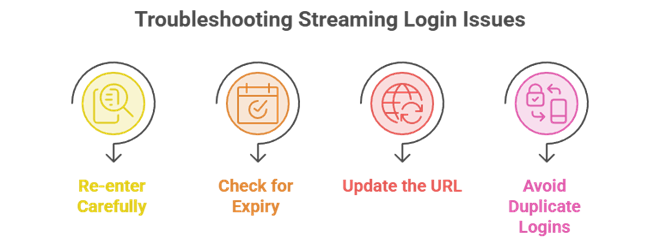
If channels will not load at all but your connection is fine, the problem is almost always the login. IPTV services use either a username and password, an Xtream Codes API, or an M3U playlist URL, and a single wrong character stops everything. These errors are common right after signup or after a provider updates its servers, and re-entering the details carefully fixes most cases within a minute or two.
- Re-enter carefully: Type the username, password, or M3U URL again exactly as the provider sent it, watching for stray spaces or characters.
- Check for expiry: Confirm the subscription is still active, since an expired plan produces the same failure as a wrong password.
- Update the URL: Providers sometimes change server addresses; ask support for the current playlist or portal URL if logins suddenly fail.
- Avoid duplicate logins: Streaming on more devices than your plan allows can lock you out, so close extra sessions first.
Fix a Missing or Wrong Programme Guide
A working stream with no programme guide is a common and minor issue, and it rarely means anything is broken. The electronic programme guide, or EPG, is a separate data feed from the channels themselves, so it can fail independently. Usually the fix is simply adding or refreshing the EPG URL your provider supplies inside your player app’s settings. If the guide shows the wrong times, the cause is almost always a time-zone setting in the app rather than a fault with the service. Set the correct region and refresh, and the schedule normally corrects itself. If your provider does not supply an EPG at all, a free third-party guide can often be linked instead, though matching it to the channel list takes a little patience.
Fix IPTV Not Working on Firestick
The Amazon Fire TV Stick is the most popular IPTV device, and it has a few quirks worth knowing. Because it is a low-powered device, a cluttered cache or too many background apps can cause IPTV players to stall or crash. Clearing the app’s cache, closing background apps, and restarting the Stick resolves most Firestick-specific problems. If an app will not install or update, check that installing from unknown sources is still enabled in the developer settings. A full walkthrough is in our guide to install on Firestick, which covers the correct setup order. For persistent freezing, an older Fire TV Stick may simply lack the power for smooth 4K playback, in which case dropping to HD or upgrading the device is the reliable fix.
When Your ISP or VPN Is the Problem
Sometimes the fault sits outside your equipment entirely. Some internet providers throttle or block streaming traffic, particularly around major live events, which can cause buffering or dead channels that no local fix resolves. If IPTV works on mobile data but not on home broadband, ISP interference is a likely cause. A VPN can sometimes bypass this by masking the traffic, though it can also slow the connection if the server is distant or overloaded, so it is worth testing with the VPN both on and off. Choose a nearby, fast VPN server for the best results. Remember that a VPN changes how your traffic is routed, not the legality of the underlying service, so it is a performance tool here rather than a fix for a provider whose own servers are the real bottleneck.
Recommended IPTV Services Worth Switching To
If you have worked through every fix above and the same service still fails during busy hours, the problem is almost certainly its servers, and no amount of troubleshooting will help. At that point, switching to a more reliable provider is the real solution. The three below are stable options with trials, and our full list of IPTV providers has more.
OrigineTV
OrigineTV replaces the previous fixing an iptv service that stopped working example because its manual renewal and standard credentials make expiry and playlist checks straightforward. Before paying, confirm current terms and compatibility on the exact device or player. during peak viewing.
Magnolia IPTV
Magnolia IPTV is a low-cost switch with a worldwide lineup, up to 4K streams, and flexible payments. A 24-hour free trial and 7-day money-back guarantee make it easy to check whether it holds up better than your current provider.
Tellystudio
Tellystudio leans on a stated 99.9% uptime and 24/7 support, which directly targets the reliability problems this guide is about. A one-day free trial lets you confirm steady playback before switching over fully.
Final Verdict
Most IPTV problems are fixable in minutes once you know where to look: restart your gear, check the connection, confirm the login, and clear the app cache before anything drastic. Buffering during busy hours and repeated failures on the same service usually point to the provider rather than your setup. When that happens, no fix beats switching to a more reliable, properly supported service. Start with a trial so you can confirm steady playback before committing, and keep these steps handy for the next time something drops.
Top 3 IPTV Services to Switch To
- OrigineTV: Best matched here for its manual renewal and standard credentials make expiry and playlist checks straightforward.
- Magnolia IPTV: A low-cost, worldwide switch with a free trial and refund window.
- Tellystudio: Stated 99.9% uptime and 24/7 support for reliability.
FAQs
Why is my IPTV suddenly not working?
A sudden IPTV failure usually means an expired subscription, a provider server outage, or a connection drop. Check your plan status and internet first, then restart your device. If other apps stream fine but IPTV does not, the provider’s servers are the most likely cause.
Why does my IPTV keep buffering?
Buffering comes from limited bandwidth, Wi-Fi instability, or overloaded provider servers at peak times. A wired connection, a lower resolution, and streaming during quieter hours all help. If buffering only happens in the evening, the provider’s servers, not your setup, are usually to blame.
How do I fix IPTV login errors?
Re-enter your username, password, or M3U URL exactly as supplied, checking for stray spaces. Confirm the subscription has not expired and that you are not exceeding your device limit. If logins still fail, ask the provider for the current server or playlist URL.
Why is my IPTV working but has no channels?
If the app opens but channels are missing, the playlist likely failed to load or the provider’s source is down. Refresh the playlist, re-enter the M3U URL, and try again later. A completely empty list often means an expired or suspended account.
Does a VPN fix IPTV problems?
Sometimes. If your ISP throttles or blocks streaming, a VPN can restore access by rerouting the traffic. But a distant or slow VPN server can add buffering, and a VPN cannot fix a provider whose own servers are overloaded. Test with it on and off.
Why does IPTV fail on my Firestick specifically?
The Fire TV Stick is low-powered, so a full cache or background apps can stall IPTV players. Clear the app cache, close background apps, and restart the Stick. Older models may struggle with 4K, so dropping to HD often restores smooth playback.
When should I switch IPTV providers?
If you have tried every fix and the same service still buffers or drops during busy hours, its servers are the problem, and switching is the answer. Choose a provider with a free trial or money-back guarantee so you can confirm reliability before paying.