
Key Takeaways
- A subscription supplies channels; a player displays them; your network delivers them.
- Match the player to your device and the credentials your provider supplies.
- Verify the channel guide and a working stream before organising favourites.
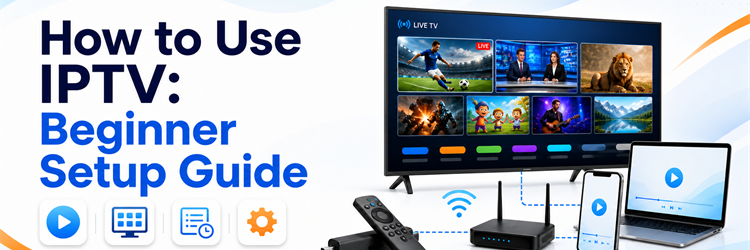
Learning how to use IPTV is easier once you separate the three parts involved: a lawful subscription supplies the channels, a player app displays them, and your internet connection carries the stream. This beginner setup guide takes you from the credentials in your welcome message to a working channel, programme guide, favourites list, and sensible troubleshooting routine without assuming any technical experience.
My Quick Take on Using IPTV
The basic process is the same on nearly every device: install a compatible IPTV player, choose the login screen that matches your details, enter them exactly, and wait for the app to import the catalogue. Use Xtream Codes when you receive a server URL, username, and password; use M3U when you receive one long playlist link. The player itself does not include channels. I recommend testing the first setup on a phone or computer because copy-and-paste is easier there, then adding the same authorised account to your main television within its connection limit.
What You Need Before You Start
Collect these items before opening an app. Most failed first attempts happen because one required detail is missing or pasted into the wrong field.
- An authorised subscription: Use credentials from a legitimate service you are entitled to access, with the account active and within its simultaneous-stream limit.
- A supported device: Fire TV, Android TV, Apple TV, a smart television, phone, tablet, Windows PC, or Mac can all work.
- A compatible player: The app must accept the exact format supplied—Xtream-compatible login, M3U playlist, or a portal address with device identification.
- A stable connection: Aim for roughly 10 Mbps available per HD stream and 25 Mbps per 4K stream, with extra capacity for other household use.
Choose the Right IPTV Player for Your Device
Start with your device, not with the app name someone else happens to use. Store availability changes by region, and some television operating systems cannot install Android APK files. This quick map avoids the most common mismatch.
| Device | Practical player route | Best login choice |
|---|---|---|
| Fire TV or Android TV | A remote-friendly app supporting playlists and EPG | Xtream Codes when available |
| Samsung Tizen or LG webOS | An IPTV player listed in the television’s own store | M3U or the app’s web-upload portal |
| iPhone, iPad, or Apple TV | A recently updated App Store player | Xtream Codes or M3U |
| Windows or Mac | A dedicated IPTV player; VLC is useful for testing one M3U stream | M3U for quick testing |
| MAG or Formuler box | The device’s built-in portal/player system | Portal URL or provider-supported login |
Step 1: Identify and Save Your IPTV Credentials
Open the provider’s welcome email or dashboard and identify what you received. Three separate values—server URL, username, and password—belong in an Xtream-compatible login screen. One long address containing terms such as get.php, username, and password is normally an M3U playlist. A separate XML or XMLTV address is guide data, not a channel playlist. Keep the message private because these details can grant account access.
Step 2: Install a Compatible IPTV Player
Search your device’s official app store first and confirm the app supports your login type before installing it. On Fire TV or Android TV, choose a layout designed for a remote rather than a phone-only interface. Samsung and LG owners must use apps available for Tizen or webOS; an Android APK will not run directly on those systems. Open the app once, accept only necessary permissions, and locate Add Playlist, Add User, or Login.
Step 3: Add Xtream Codes or an M3U Playlist
For Xtream Codes, give the playlist a simple local name, enter the complete server address including http:// or https:// and any port, then add the username and password separately. For M3U, choose Remote Playlist or M3U URL and paste the entire link without editing it. Do not put a full M3U address into the server field. Save once and allow the first import to finish before pressing buttons again.
Step 4: Load and Verify the EPG
An electronic programme guide adds titles, times, and descriptions to the channel grid. Xtream-compatible logins often import it automatically; M3U setups may need a separate XMLTV URL under EPG Sources. Confirm the device time zone is correct, assign the guide to the playlist, and run one refresh. A blank guide does not automatically mean playback is broken—test a channel first, because playlist video and schedule data are separate systems.
Step 5: Test Channels and Organise the App
Test at least three live channels from different groups, one on-demand title, subtitles or an alternate audio track, and a busy sports stream if that matters to you. Let each play for several minutes. Then hide unwanted categories, add a short favourites list, enable parental controls where appropriate, and note the account’s allowed connection count. Do not judge stability from one easy channel or open the same single-connection account on two devices simultaneously.
Set Up IPTV on Firestick, Smart TV, Phone, or Computer
The login process barely changes, but installation and text entry do. Follow the route that fits the operating system rather than forcing instructions written for another device.
- Fire TV: Install an available player, or follow the dedicated guide to install on Firestick when the required app needs a different approved installation route.
- Smart TV: Use the television’s own store. If no suitable Tizen or webOS app exists, add a streaming stick through HDMI instead.
- Phone or tablet: Copy credentials directly from the welcome message, complete the first test, then avoid storing screenshots that expose the username or password.
- Windows or Mac: A dedicated app gives a proper guide; VLC can quickly test an M3U URL through Open Network Stream but offers limited EPG navigation.
Fix the Most Common Beginner Setup Problems
Change one layer at a time: account, login format, player, network, then guide. Randomly reinstalling everything destroys useful evidence and rarely fixes a typing error.
- Invalid credentials: Remove spaces, preserve capital letters, include the URL protocol and port, and confirm the subscription has not expired.
- Playlist will not load: Verify that an M3U link went into the playlist field rather than the Xtream server or EPG field.
- Channels load but do not play: Close streams on other devices, test another channel, restart the app, then follow these broader IPTV fixes.
- Guide is empty or offset: Check the device time zone, confirm the XMLTV source is assigned, clear only EPG data, and refresh once.
- App is missing: Store listings vary by region and operating system; choose another compatible player or use an external streaming device.
How Did We Evaluate This Guide?
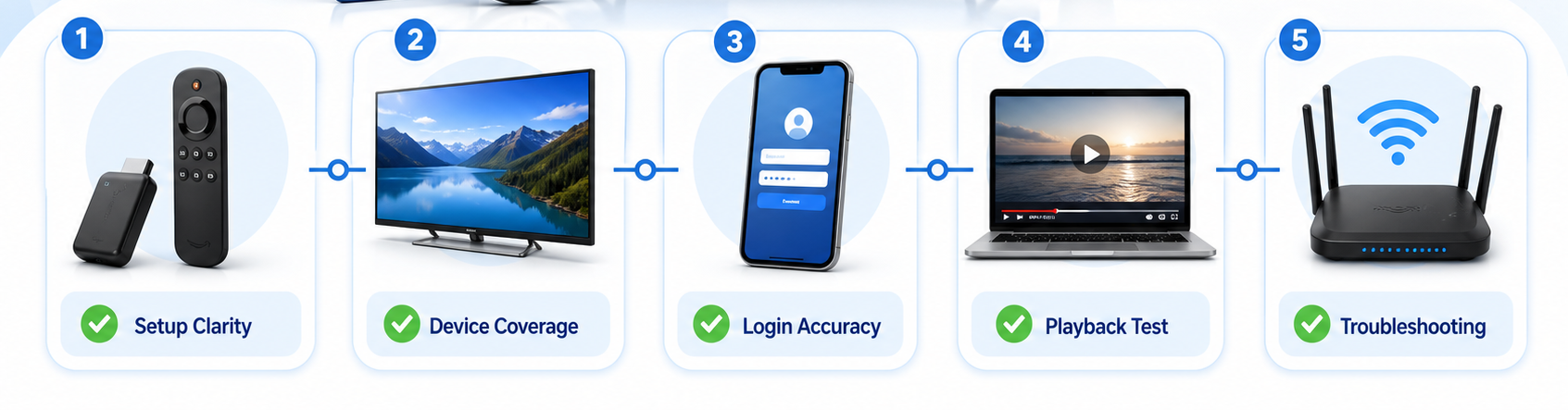
I compared the setup paths described across 15 current beginner guides, then checked their recurring steps against official Kodi and VLC documentation and live player workflows. The evaluation focused on whether a complete beginner could identify the correct login type, install an appropriate app, import channels, load guide data, and diagnose a failed first stream. Device coverage included Fire TV, Android TV, Samsung and LG televisions, Apple devices, Windows, and macOS. Provider claims were treated as claims, while player behaviour and menu logic were checked separately. Use only playlists and services you are authorised to access.
Improve Picture Quality and Reduce Buffering
Buffering is not one problem. Separate weak Wi-Fi, an overloaded device, a failing individual stream, and provider congestion before changing advanced playback settings.
- Use ethernet: A modest wired connection is often steadier than faster Wi-Fi crossing walls, especially for sustained 4K playback.
- Match the decoder: Try the player’s hardware decoder first; switch only if one codec gives a black screen, stutter, or missing audio.
- Keep a small buffer: A moderate player buffer absorbs short network dips, while an excessive value makes channel changes frustratingly slow.
- Test at peak time: A trial should include the channels and evening hours you actually watch, not only quiet daytime playback.
Recommended IPTV Services for a First Setup
Beginners benefit from clear credentials, broad device support, EPG data, and a trial or short plan that limits commitment. Prices and catalogue figures below were checked against the providers’ live pages on 27 August 2026; verify the checkout and content rights available in your location.
iScreenHD IPTV
A practical first test for users who want broad device compatibility and EPG support. Its current page lists 15,000+ channels, a free trial request, and one-device plans from $14.99 monthly. Start with the trial and confirm your local lineup.
StreamingNordic IPTV
Useful for households that may later add extra screens. The official page lists 30,000+ channels, catch-up, a free trial, and plans from €14.99 monthly, with separate Duo and Trio annual options for simultaneous connections.
Mangolia IPTV
A low-commitment option for testing navigation and device compatibility. Its live pricing page advertises a free 24-hour trial, 22,000 channels, EPG support, and one-connection plans from $13 monthly with a seven-day refund policy.
Final Verdict
To use IPTV successfully, match the credentials to the correct player screen before changing anything else. Install a compatible app, use Xtream Codes for separate server, username, and password fields or M3U for one complete playlist URL, then let the catalogue finish importing. Confirm playback before troubleshooting the guide, test several channel types, and stay within the connection limit. Ethernet and a capable decoder improve reliability, but neither can repair a bad account or failing source. The best beginner setup is the one you can verify on a short trial, organise quickly, and recover without exposing your login details.
Top 3 IPTV Services for Beginners
- iScreenHD IPTV: simple trial path with broad device and EPG support.
- StreamingNordic IPTV: flexible multi-screen options for expanding a household setup.
- Mangolia IPTV: free 24-hour test and a low monthly starting price.
FAQs
What is the easiest way to use IPTV for the first time?
Install a compatible player, choose the Xtream Codes or M3U login that matches your credentials, enter the details exactly, and wait for channels to import. Test on a phone or computer first if typing with a television remote is difficult.
Does an IPTV player include channels?
No. A player is only software that organises and plays a compatible source. You still need an authorised playlist, account, or portal from a separate service. Treat apps promising unexplained built-in premium channels with caution.
Should a beginner choose Xtream Codes or M3U?
Use the format your service supplies and your player supports. When both are available, Xtream-compatible login is usually easier because channels, VOD, account information, and guide data can load through one structured connection.
How long does IPTV setup normally take?
A straightforward setup takes about five to fifteen minutes. Television remotes and large catalogues can add time. If it takes much longer, stop and verify the login format, URL, password, account status, and app compatibility.
Why does the EPG stay blank when channels work?
The playlist and programme guide are separate data sources. Check whether your setup needs an XMLTV URL, assign it to the correct playlist, verify the device time zone, clear only cached EPG data, and refresh once.
Can I use one IPTV login on several devices?
You can often install the same account on several devices, but simultaneous playback is limited by the purchased connection count. Opening two streams on a one-connection plan may disconnect one device or reject the second stream.
Do I need a VPN to use IPTV?
Not automatically. A VPN can protect traffic on untrusted public Wi-Fi, but it does not make unauthorised content lawful and can reduce speed. Use licensed sources, follow local rules, and troubleshoot the normal connection before adding another network layer.