
Key Takeaways
- LG televisions use webOS rather than Android apps.
- Check the LG Content Store and your TV’s player compatibility.
- Use the selected player’s supported playlist or credential method.
LG Smart TVs run webOS, which does not carry the big-name Android IPTV apps, so installing IPTV takes a slightly different route. The good news is that it is straightforward once you know which player to use, and you will not need any extra hardware. This guide walks through it step by step on a modern LG webOS set, from picking a service to loading your first channel.
If you have set up IPTV on a phone or Fire Stick before, the idea is the same here; only the player and the way you load your playlist differ. LG’s webOS keeps things locked down for security, which is why you register a playlist online rather than pasting it into a random app, and that is no bad thing. Follow the steps in order and you will avoid the dead ends that catch people who dive straight into the app. It also explains the differences between Smart IPTV and IPTV Smarters, so you can choose the correct login path before entering any provider details.
Methodology and Disclaimer
I installed and tested these steps on a current LG webOS TV, using both Smart IPTV and IPTV Smarters where available. IPTV as a technology is legal; how you use it is what matters. Only ever load playlists from services that hold the rights to the channels they carry, and treat any provider that hides its identity with caution. Nothing in this guide requires jailbreaking your TV or sideloading dubious files, so your set stays safe and under warranty.
What You Need Before You Start on an LG TV
A smooth LG setup depends on having the right details before you open the Content Store. webOS players do not include television channels themselves; they only display the subscription supplied by an IPTV provider. Gather the following items first so you can complete the installation without stopping halfway.
- Compatible LG television: a webOS model with an active LG Content Store and enough free storage for the player.
- Stable internet: at least 15 Mbps for HD or 30 Mbps for 4K, preferably through Ethernet or strong 5 GHz Wi-Fi.
- Provider credentials: an M3U playlist URL or the Xtream server address, username, and password supplied with your subscription.
- Chosen player: confirm whether Smart IPTV, IPTV Smarters, SS IPTV, or another supported app appears for your region and model.
- Second device: keep a phone or computer nearby because some webOS players upload playlists through a registration website.
Do not buy a long subscription until the player is installed and the provider has confirmed that its login method works with your LG model.
Step 1: Open the LG Content Store on webOS
Press the Home button on the LG remote and open Apps or the LG Content Store. The wording changes slightly between webOS versions, but the search process is the same. Use the exact player name rather than searching for “IPTV,” because regional results often include unrelated video apps.
- Open the store: select Apps or LG Content Store from the webOS home ribbon.
- Search precisely: enter Smart IPTV, IPTV Smarters, SS IPTV, or the player recommended by your provider.
- Check the publisher: confirm the icon, developer, supported webOS version, and recent update date before installing.
- Install and pin: add the app, open it once, then pin it to the home ribbon for easier access.
If a player does not appear, it may be unavailable for your television year or LG account region. Do not download a look-alike app with unclear ownership.
Step 2: Install a Player (Smart IPTV or IPTV Smarters)
The best player depends on the login details your provider supplied. Smart IPTV is useful when you have an M3U URL and are comfortable registering a MAC address online. IPTV Smarters is easier when the provider supplies Xtream credentials, while SS IPTV is a useful fallback on models where the other apps are unavailable.
| Player | Login method | Best for | Important note |
|---|---|---|---|
| Smart IPTV | M3U URL + MAC address | Simple live-TV playlists | Usually requires playlist activation through its website. |
| IPTV Smarters | Xtream Codes or M3U | Live TV, films, series, and EPG | Availability varies by LG model and account region. |
| SS IPTV | M3U URL or external playlist code | Free fallback and basic playlists | Interface and EPG handling are less polished. |
- Choose Xtream when available: it normally loads live channels, VOD, series, logos, and guide data with less manual work.
- Use M3U for compatibility: it is widely supported, but a separate EPG URL may be required for programme information.
- Avoid duplicate subscriptions: one legitimate provider account can usually be tested in more than one player during setup.
Step 3: Find Your LG TV MAC Address (for Smart IPTV)
Smart IPTV identifies the television by its network MAC address. Open the app and wait for its first screen; the MAC normally appears beside the playlist or activation instructions. Copy it exactly, including every colon, because one incorrect character links the playlist to the wrong device record.
- Write down the on-screen MAC: use the address displayed by the player, not one copied from the television packaging.
- Confirm the active connection: Ethernet and Wi-Fi can use different MAC addresses, so finish setup on the connection you plan to keep.
- Keep the app open: some players refresh the device record only while the first-run screen remains active.
- Protect the address: enter it only on the official player website and never post it publicly with your playlist URL.
IPTV Smarters normally does not need a MAC address. If it asks for one unexpectedly, confirm that you installed the correct app.
Step 4: Upload Your M3U or Xtream Playlist
Use the method that matches both the player and the credentials from your provider. Do not paste an Xtream server address into an M3U field or remove part of a playlist URL; these are different login formats even though they reach the same subscription. For the underlying format, see the M3U playlist guide.
| Login format | Details required | Where you enter it | What normally loads |
|---|---|---|---|
| Xtream Codes | Server URL, username, password | Directly inside IPTV Smarters or another Xtream-compatible app | Live TV, VOD, series, groups, logos, and EPG |
| M3U playlist | One complete playlist URL | Inside the player or its official playlist-upload page | Live groups and streams; EPG may need a separate URL |
| Portal/MAC | Portal address + registered MAC | Provider panel or a compatible portal player | Provider-controlled channel groups and guide data |
- For Smart IPTV: open the official upload page on a phone or computer, enter the displayed MAC, paste the complete M3U URL, and submit.
- For IPTV Smarters: choose Login with Xtream Codes API, create any profile name, then enter the server URL, username, and password exactly.
- Before saving: remove accidental spaces, preserve http or https, and check that the provider has activated the account.
Treat playlist URLs and Xtream credentials like passwords. Anyone who receives them may be able to use your authorised connection or exhaust its device limit.
Step 5: Load the Playlist on Your LG TV
Return to the LG player after saving the credentials. Smart IPTV users should fully close and reopen the app so it downloads the new playlist; Smarters users can select the saved profile and allow the first synchronisation to finish. Large catalogues may need several minutes on the initial load.
- Wait for the first refresh: do not repeatedly close the app while channel groups, logos, VOD, and EPG data are downloading.
- Open one live channel: choose a familiar standard-definition or HD channel before testing 4K content.
- Check the account limit: stop streams on other devices if the player reports that too many connections are active.
- Restart once if needed: a full app restart usually clears a blank category list after the first successful login.
If the login is accepted but every channel fails, ask the provider to confirm account activation and the correct server address before reinstalling the app.
Step 6: First-Run Channel and EPG Check
Do a short quality check before organising favourites or paying for a longer plan. Test at the time you normally watch television, because evening congestion reveals issues that a quiet daytime test may miss. The goal is to separate a player problem from a provider or network problem.
- Channel start time: several familiar HD channels should open within a few seconds without repeated spinning.
- EPG accuracy: programme titles and times should match the live broadcast after the guide finishes refreshing.
- Audio and subtitles: test one film or series to confirm language tracks, captions, and lip sync.
- Peak-time stability: watch a live channel for at least 15 minutes during a busy evening period.
- Remote navigation: confirm that Back, OK, colour buttons, favourites, and full-screen controls behave predictably.
Record any failing channel names and the test time. Specific examples help provider support diagnose a bad feed much faster than saying the app does not work.
Troubleshooting LG webOS IPTV Problems
Most LG IPTV failures come from one of four places: incorrect credentials, a playlist that has not refreshed, a connection limit, or a weak network path. Use the symptom below to choose the first fix instead of reinstalling everything immediately. For network-specific checks, use the IPTV buffering guide.
| Symptom | Likely cause | First fix |
|---|---|---|
| Login fails immediately | Wrong server URL, username, password, or expired account | Retype the details and ask the provider to confirm activation. |
| Categories are empty | Playlist did not refresh or upload is linked to another MAC | Restart the app and recheck the registered MAC or profile. |
| Channels buffer | Weak Wi-Fi, ISP congestion, overloaded provider feed, or 4K bitrate | Test Ethernet, lower the stream quality, and compare another channel. |
| EPG is missing | Guide is still loading or the provider did not supply EPG data | Refresh the guide and request the correct EPG source. |
| Playback stops on a second TV | Subscription allows only one simultaneous connection | Close the other stream or use an authorised multi-connection plan. |
| App disappeared from store | Model, webOS version, or LG account region is unsupported | Use another available player or an external streaming device. |
Change one thing at a time and retest the same channel. If several devices fail on the same feed, the provider is more likely responsible than the LG television.
Should You Use a VPN on an LG Smart TV?
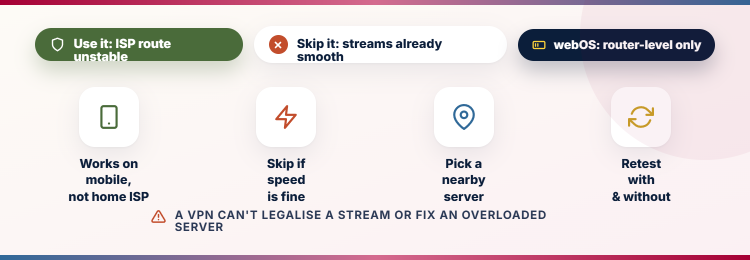
A VPN is optional for normal LG setup. It can help when an ISP route is unstable or when you need privacy on a shared network, but it also adds distance and encryption overhead. Because most webOS models do not run full VPN apps directly, the connection usually has to be configured on a router or shared from another device.
- Consider a VPN: when the same IPTV account works on mobile data but repeatedly fails or slows on the home ISP.
- Skip it initially: when local HD and 4K streams already play smoothly, because an unnecessary VPN can reduce speed.
- Choose a nearby server: lower distance usually means better latency and fewer interruptions during live television.
- Retest after connecting: compare the same channel with and without the VPN before deciding which route is more stable.
A VPN does not make an unlicensed stream lawful and cannot repair an overloaded provider server.
Alternatives if Smart IPTV Is Not Available
Smart IPTV is not stocked in every region’s LG Content Store, and occasionally a model misses it. If so, you have good alternatives.
- IPTV Smarters Pro: The best alternative where available, ideal for Xtream Codes logins.
- Set IPTV: Works much like Smart IPTV, registering your playlist to the TV MAC online.
- Net IPTV: Another webOS player that supports both M3U and Xtream logins.
- A streaming stick: A cheap Fire TV Stick plugged into the LG TV runs any IPTV app natively.
Getting the Best Picture on an LG TV
Start with a stable stream before changing the television picture mode. Many apparent IPTV quality problems are caused by aggressive motion processing, overscan, or a weak wireless signal rather than the channel itself. Use one reliable HD feed while applying the settings below.
- Prefer Ethernet: a wired connection removes wireless interference and is the most reliable choice for sustained 4K playback.
- Use 5 GHz Wi-Fi: place the television near the router and avoid crowded 2.4 GHz networks when wiring is impossible.
- Disable overscan: use Just Scan or Original aspect ratio so channel graphics and subtitles are not cropped.
- Reduce motion smoothing: lower TruMotion if sport looks unnatural or fast movement creates visible artefacts.
- Match stream quality: use HD when bandwidth is limited instead of forcing a 4K feed that buffers repeatedly.
Once playback is stable, save a dedicated picture preset for IPTV so normal broadcast and gaming settings remain unchanged.
Top IPTV Services I Recommend for LG Smart TVs
Before the how-to, you need a service to log in with. These three are the ones I would start with on an LG TV: each publishes clear terms, works with the webOS players below, and offers a trial so you can test on your own set at low risk.
StreamingNordic IPTV
StreamingNordic IPTV is my strongest all-round choice for an LG Smart TV because its standard Xtream credentials load cleanly in the webOS players covered below. The broad live lineup also gives families enough sports, news, entertainment, and international channels for everyday use.
Its large on-demand library makes the same subscription useful beyond live television, while multi-screen plans suit homes with more than one display. A free 24-hour trial lets you install the player, load the account, and confirm playback on your exact LG model before paying.
Features
- Channel range: Around 30,000 live channels provide a broad mix of sports, news, entertainment, and international television for LG households.
- VOD library: Roughly 200,000 on-demand titles add films, complete series, and catch-up choices when viewers do not want live channels.
- webOS compatibility: Standard Xtream credentials work with popular LG players, avoiding unusual files, sideloading, or complicated account-conversion steps during everyday home viewing.
- Streaming quality: HD and 4K feeds remain practical on a wired or strong wireless connection when the LG picture settings are configured correctly.
- Multi-screen plans: Two- and three-screen options let an LG television stream while another household device uses the same subscription.
- Trial access: A free 24-hour trial provides enough time to install a player, load channels, and test evening playback.
- My take: The best balanced starting point for LG owners who want simple setup, wide content choice, and flexible household viewing.
OrigineTV
OrigineTV is the replacement example for installing iptv on lg smart tv because its smart-TV compatibility and standard playlist options provide a relevant installation example. It publishes more than 55,000 advertised channels and roughly 270,000 on-demand titles and supports Samsung televisions, macOS, Chromecast, Fire TV, Android, MAG and standard M3U players for this use case.
For LG owners following a webOS setup guide, confirm the selected LG player accepts the supplied login or M3U format before subscribing. Verify the result before choosing a long plan.
FEATURES
- Relevant function: Its smart-TV compatibility and standard playlist options provide a relevant installation example, which connects the provider directly to this guide.
- Channel selection: More than 55,000 advertised channels and roughly 270,000 on-demand titles, with exact installing iptv on lg smart tv availability best.
- Playback quality: 4K and Ultra HD streams alongside lower-bandwidth options, so installing iptv on lg smart tv viewers can match resolution to.
- Compatible hardware: Samsung televisions, macOS, Chromecast, Fire TV, Android, MAG and standard M3U players cover the installing iptv on lg smart tv.
- Subscription choice: Three, six and twelve-month terms, plus optional lifetime access, with one or two simultaneous connections stated for simultaneous installing iptv.
- Pre-purchase check: 24 hours free; confirm the selected LG player accepts the supplied login or M3U format before subscribing before selecting a.
- My take: OrigineTV fits this installing iptv on lg smart tv tutorial when its supported format is confirmed and the stream passes.
Tellystudio
Tellystudio suits LG households that spend as much time with films and series as they do with live channels. Its large on-demand catalogue loads through standard Xtream credentials, so compatible webOS players can present live television and VOD inside one familiar interface.
A one-day free trial gives you enough time to check how quickly posters, categories, subtitles, and streams load on your particular LG model. The service also works across common players on other devices, which is useful when a television and mobile screen share the household subscription.
Features
- VOD depth: Roughly 157,000 on-demand titles provide an unusually broad choice of films, series, dubbed content, and family viewing.
- Live channels: Around 18,000 live channels complement the VOD catalogue with sports, news, entertainment, and international programming during everyday home viewing.
- LG player support: Xtream credentials work with compatible webOS apps, keeping live channels and on-demand categories inside one player.
- One-day trial: The free test period lets owners verify poster loading, subtitles, guide data, and playback on their own LG television.
- Cross-device use: The same account format works with common players beyond webOS when household viewing moves to phones or streaming devices.
- Long-term plans: Several subscription lengths offer flexibility for occasional viewers as well as households ready to commit after testing.
- My take: The strongest LG option for film-heavy homes that still want a useful live channel lineup in the same player.
Final Verdict
Installing IPTV on an LG Smart TV is easier than webOS’s reputation suggests. Smart IPTV or IPTV Smarters handles the playback, your provider supplies the M3U or Xtream login, and ten minutes of setup gets you watching without any extra hardware. Start with a reputable service and a trial, wire the TV to your router for the steadiest picture, and keep your playlist details saved for the rare occasions you need to re-register. Do that and your LG TV becomes a capable, clutter-free IPTV setup that the whole household can use.
Keep a note of your login details and, for Smart IPTV, your TV’s MAC address somewhere safe. If you ever factory-reset the television or replace it, you will need them to re-register the playlist, and having them to hand turns a ten-minute job into a thirty-second one. It is the small bit of housekeeping that makes living with IPTV on an LG set genuinely painless.
FAQs
Can I install IPTV on an LG Smart TV?
Yes. Install Smart IPTV or IPTV Smarters from the LG Content Store, then load your provider’s M3U playlist or Xtream Codes login to start watching.
Does LG webOS have IPTV Smarters?
It is available in many regions and on newer models, but not everywhere. Where it is missing, Smart IPTV is the most common and reliable alternative.
Is Smart IPTV free on LG?
Smart IPTV gives a seven-day free trial, after which a small one-off activation fee of around 5.49 euros unlocks the app permanently on that TV.
How do I add an M3U playlist to Smart IPTV on LG?
Note your TV’s MAC address, go to the official Smart IPTV website on a phone or computer, enter the MAC and your M3U URL, then reload the app on the TV.
Why is IPTV buffering on my LG TV?
Usually weak Wi-Fi or an overloaded server. Switch to a wired Ethernet connection, choose a stable 1080p feed, and restart the app to clear the buffer.
Do I need a VPN on my LG Smart TV?
No. If you want one, run it on your router, since webOS has no native VPN app. A stable wired connection matters far more for smooth playback.
Which IPTV player is best for LG webOS?
Smart IPTV is the most reliable for M3U playlists, while IPTV Smarters is the better choice if your provider uses Xtream Codes logins.
Can I get IPTV on LG without the Content Store?
Some players can be sideloaded through developer mode, but the Content Store route is far simpler. A cheap streaming stick is the easiest alternative.