
Key Takeaways
- IPTV Smarters is a player, not a channel subscription.
- Use a server URL, username, and password, or a complete M3U playlist URL.
- Choose the login method that matches your authorised provider details.
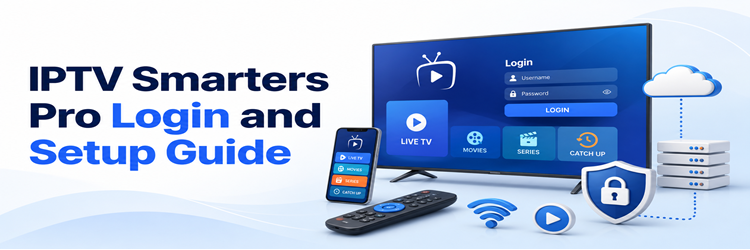
IPTV Smarters Pro login takes only a few minutes when you start with the right details. The app is a media player, not an IPTV subscription, so it opens without channels. You must add a legally authorized source supplied by your service: either a server URL, username, and password for Xtream Codes API, or one complete M3U playlist URL.
I recommend identifying which credential format you received before touching the login screen. Putting an M3U address into the server field—or omitting the protocol or port from an Xtream host—is the most avoidable setup failure. This guide shows both login routes, the current device options, what every field means, how to validate the first import safely, and how to protect the credentials embedded in your playlist.
Before You Start: Match Your Details to the Right Login
Open the activation message from your authorized provider and compare it with this table. Do not invent a server, port, username, or password. Screen labels can vary slightly between Smarters builds and platforms, but the credential formats remain distinct.
| What you received | Choose in Smarters | Fields you will enter |
|---|---|---|
| Server/portal URL + username + password | Login with Xtream Codes API | Profile name, username, password, server URL |
| One long URL containing playlist parameters | Load Your Playlist or File/URL | Profile name, M3U URL, optional EPG URL |
| An .m3u or .m3u8 file stored locally | Load Your Playlist or File | Profile name and local file |
| Email address and password for a Smarters purchase | Smarters account/client area | This is not your IPTV playlist login |
- Have ready: Your supported device, stable connection, authorized credentials, and access to the original activation message.
- Copy exactly: Preserve capitalization, protocol, domain, port, punctuation, and any characters inside the supplied URL.
- Keep private: A playlist URL may contain the username and password in plain text, so never share a screenshot of it.
Install the Correct Smarters App on Your Device
App names and availability change by platform and region. The developer currently lists Android phone, Android TV, iOS, Apple TV, Windows, macOS, Samsung TV, and WebTV options, while LG support is marked as coming soon. Start at the official Smarters Pro site or your device’s official store instead of copying a random Downloader code from a setup page.
| Device | Safest installation route | Setup note |
|---|---|---|
| Android phone/tablet | Official download page or verified store listing | Use the phone build, not the Android TV build |
| Android TV / Google TV | Official Android TV download or verified TV-store listing | Use a remote-friendly TV version |
| Fire TV Stick | Search the Amazon Appstore first; sideload only from the developer’s current official source if unavailable | Disable install permission after sideloading |
| iPhone / iPad / Apple TV | Follow the developer’s App Store link | Check the developer name because similarly titled apps exist |
| Windows / macOS | Official Windows or Mac download | The developer currently labels both desktop builds beta |
| Samsung / LG TV | Check the television’s regional app store and the current developer page | Availability varies; an external Android/Fire TV device is the clean fallback |
On Fire TV, hidden Developer Options can usually be revealed from Settings → My Fire TV → About by selecting the device name repeatedly. Amazon documents this path for sideloading, but no permission is needed when the app installs directly from the Appstore.
Log In With Xtream Codes API
Choose Xtream Codes when the provider gives you three separate values: a server address, username, and password. This method normally imports live channels, programme data, movies, and series into separate sections when the provider includes them.
- Open Smarters and select Add New User, the plus icon, or the equivalent profile command.
- Select Login with Xtream Codes API. Some builds shorten this to Xtream Codes or XC API.
- Enter any local profile label in Your Name, such as Living Room. This is not the account username.
- Paste the provider-issued Username and Password exactly. Both may be case-sensitive.
- Paste the complete Server URL, including http:// or https:// and the port when one was supplied.
- Select Add User, accept only the app’s normal terms prompt, and wait while the profile imports.
If you want the technical background before choosing this route, the site’s Xtream Codes guide explains how the server, username, and password work together.
Log In With an M3U URL or Local Playlist
Choose M3U when you received one complete playlist address or a playlist file. M3U can carry live channels and other streams, but organization, VOD metadata, and EPG behaviour depend on how the provider built the playlist.
- From Add New User, choose Load Your Playlist or File/URL or the closest M3U option.
- Enter a local profile name that helps you distinguish this source from future profiles.
- Select URL for a provider link or File if the playlist is saved locally on the device.
- Paste the entire M3U URL without shortening, editing, or opening it in a public URL-checking service.
- Add the separate XMLTV/EPG URL only if your provider supplied one and the app shows that field.
- Select Add User or Add Playlist, then let the initial channel import finish before navigating away.
Do not extract credentials from a playlist URL unless the source owner explicitly supports that conversion. The original login format is the least error-prone choice.
Finish the First-Run Configuration
A successful import is the start of setup, not the finish. Configure only the controls your build exposes, and change one setting at a time so you can reverse a poor result.
- Refresh content: Allow Live TV, Movies, Series, and EPG data to finish loading before judging a missing category.
- Confirm the clock: Enable automatic date, time, and timezone on the device so EPG programmes line up correctly.
- Choose a player: Keep the default player first; switch decoder or external-player settings only when a known stream fails.
- Organize safely: Add favourites, hide unused groups, and rename the local profile without modifying the supplied credentials.
- Protect viewing: Set a parental-control PIN that is not reused for banking, email, or device accounts.
Multiple profiles are useful for separate authorized sources, but each profile can retain sensitive connection details on the device.
How We Evaluated This Login and Setup Process
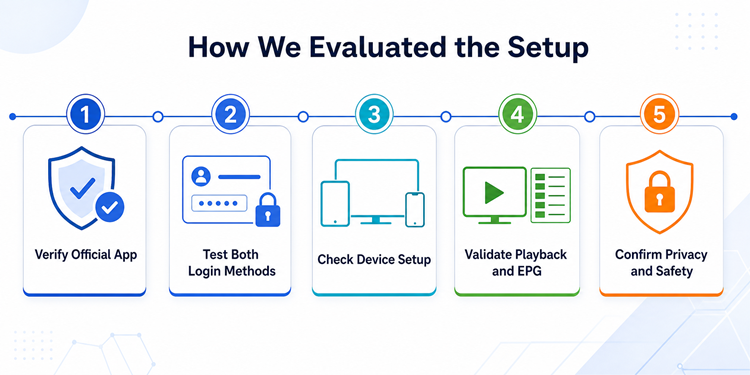
The evaluation focused on whether a first-time user could install the legitimate player, choose the correct credential type, complete setup on common devices, and verify playback without revealing private account information. Competitor instructions were compared against the developer’s current download, terms, and support pages.
- Official-app check: Device claims were checked against the developer’s current platform list instead of copied from old setup pages.
- Login-method check: Xtream, M3U URL, and local-file flows were separated so fields could not be mixed accidentally.
- Device check: Store installation, sideloading differences, remote input, and first-launch behaviour were reviewed across major platforms.
- Playback check: The completion test includes live video, audio, EPG, VOD availability, profile reload, and favourites.
- Safety check: Every step avoids public playlist validators, unofficial codes, screenshots of credentials, and unauthorized content.
Verify the Setup Before Calling It Complete
Do not stop after the dashboard appears. A profile can import successfully while its guide, one content section, or playback engine still needs attention. Run this five-minute acceptance check.
| Test | Passing result | If it fails |
|---|---|---|
| Open three unrelated live channels | Video and audio start on each | Separate one bad feed from a player-wide failure |
| Open the EPG | Programmes align with local time | Refresh guide data and correct device timezone |
| Open one movie or series item | Metadata and playback load when included | Confirm the provider and login method include VOD |
| Add and reopen a favourite | The favourite persists | Check storage permission and free device space |
| Close and relaunch Smarters | The profile returns without re-entry | Update the app and investigate local-data retention |
Testing several unrelated channels matters because one unavailable feed does not prove the login or app is broken.
Fix Setup Mistakes Without Exposing Credentials
When Add User fails, return to the original activation message and check the smallest possible detail first. Avoid repeatedly reinstalling an app that has not yet authenticated.
- Wrong method: Separate host, username, and password belong in Xtream; one complete playlist address belongs in M3U.
- Incomplete host: Restore the exact protocol, domain, port, and path supplied by the provider.
- Hidden spaces: Delete and paste each value again, watching for spaces before or after the credential.
- Expired access: Check subscription status and simultaneous-connection limits before altering app data.
- Empty categories: Wait for the import, refresh the profile once, remove filters, and correct the device clock.
If login succeeds but streams pause repeatedly, use the separate IPTV buffering diagnostic instead of deleting a working profile.
Use IPTV Smarters Pro Safely and Legally
The developer’s official terms describe Smarters Pro as a standalone player that does not supply channels, subscriptions, or pre-installed content. Use only media you are authorized to access and verify the law that applies where you live.
- Verify the source: Obtain the app from the official developer page or a verified platform store listing.
- Protect the playlist: Treat M3U URLs, server addresses, usernames, passwords, and portal tokens like account credentials.
- Avoid public tools: Do not paste a private playlist into online validators, forums, or screenshot-based support requests.
- Review permissions: Grant only the storage or media access required for features you actually use.
- Remove old access: Delete unused profiles before selling, gifting, repairing, or factory-resetting a device.
Alternative Players If Smarters Is Unavailable
Use another player only when the official Smarters build is unavailable or incompatible with your device. These apps still require a legal playlist or supported login; none includes channels.
Sparkle TV
Sparkle TV is designed for Android TV, Google TV, and Fire TV-style screens. I would choose it when remote navigation, XMLTV guide control, and DVR/PVR features matter more than phone support. Its separation of playlist and EPG sources also makes it useful when you need to confirm whether a guide problem is independent of playback.
- Best for: Television-first Android and Fire TV setups.
- Supports: M3U, XMLTV, favourites, programme guides, and DVR/PVR controls.
- Limitation: It is not the broadest choice for phones, desktops, or Apple devices.
Kodi
Kodi is an open-source media center available across many television, desktop, and mobile platforms. My reason to use it here is device coverage: its PVR IPTV Simple Client can load authorized M3U and XMLTV sources when a native Smarters build is absent. Setup takes more steps, and its interface is broader than a dedicated IPTV player.
- Best for: Mixed-device homes needing an open-source media center.
- Supports: M3U playlists, XMLTV guides, local media, add-ons, and multiple platforms.
- Limitation: Initial PVR configuration is less direct than Smarters login.
VLC Media Player
VLC opens many network-stream and playlist formats on phones and computers without requiring an IPTV-specific dashboard. I use it as a quick diagnostic when an authorized M3U playlist needs testing outside Smarters. It is excellent for direct playback, but its basic channel browsing, programme-guide experience, and television-remote workflow are weaker than dedicated IPTV players.
- Best for: Direct stream testing on Windows, macOS, Linux, Android, and iOS.
- Supports: M3U playlists, network URLs, local media, subtitles, and numerous codecs.
- Limitation: It lacks the polished EPG and category dashboard of IPTV-focused apps.
Final Verdict
A reliable IPTV Smarters Pro setup depends more on matching the credential format than on changing advanced settings. Use Xtream Codes for a separate server, username, and password; use M3U for one playlist URL or file. Install only from the developer’s current source or a verified app store, preserve every character in the supplied details, and keep them private. After the import, test several live channels, EPG timing, included VOD, favourites, and a full app restart before treating the profile as complete.
Top 3 IPTV Smarters Pro Alternatives
- Sparkle TV: Best television-first option for M3U and XMLTV setups.
- Kodi: Best cross-platform media-center alternative for configurable PVR use.
- VLC: Best lightweight choice for direct playlist and stream testing.
FAQs
What is the IPTV Smarters Pro login?
It is the authorized source information supplied by your IPTV service, usually a server URL, username, and password for Xtream Codes or one M3U playlist URL. A Smarters website account is separate from the playlist login.
What should I enter in the “Your Name” field?
Enter any local profile label, such as Living Room or Family TV. It helps identify the profile on that device and does not need to match the provider-issued username or account holder’s name.
Should I use Xtream Codes or M3U?
Use the format your provider supplied. Choose Xtream Codes for separate server, username, and password fields. Choose M3U for one complete playlist URL or file. Do not move partial values between the two methods.
Where do I get my IPTV Smarters Pro username and password?
Your authorized IPTV provider supplies them in its activation message or account portal. Smarters Pro does not create playlist credentials or include channels. Never buy access from a website merely because it copies the Smarters name.
Why does IPTV Smarters Pro say invalid details?
Common causes are the wrong login method, a missing protocol or port, hidden spaces, incorrect capitalization, expired access, a changed provider portal, or an occupied connection slot. Recopy the original details before reinstalling the app.
Can I use one Smarters login on multiple devices?
You can install the player on supported devices, but simultaneous streaming depends on the connection allowance attached to your authorized subscription. Closing the app on one device may be necessary before playback starts on another.
Is IPTV Smarters Pro legal and safe?
The player itself is legal software, but the content source and your rights to use it matter. Install from official sources, use legally acquired media, review permissions, and never expose the private credentials inside a playlist URL.
Why is the EPG empty after setup?
First let the initial import finish, refresh the guide, and enable automatic date, time, and timezone. If live channels work but the guide remains empty on every device, request the correct XMLTV/EPG source from your provider.