
Key Takeaways
- Match the symptom to login, network, provider, or decoder checks.
- Verify the server address, subscription status, and connection limit first.
- Keep your credentials safe before clearing app data or reinstalling.
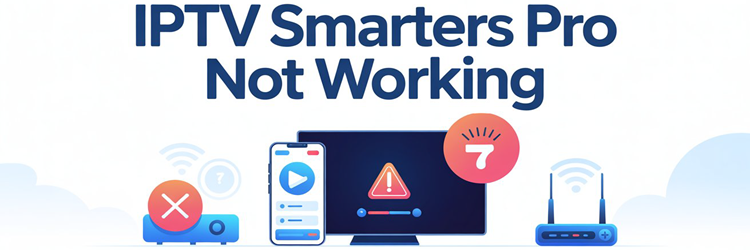
When IPTV Smarters Pro is not working, reinstalling it immediately is usually the wrong first move. The app may be fine while an expired subscription, a mistyped server address, a full connection limit, a provider outage, or a decoder problem blocks playback. The symptom tells you which layer to test. A login rejection needs a different fix from a black screen, missing EPG, or app crash.
I use a simple isolation test before changing settings: try several unrelated channels, then test the same authorized playlist on another device or compatible player. This guide follows that diagnostic order, starting with the account and source before moving to the network, app, and device. Work down the relevant steps and stop when the problem disappears. Only clear app data or reinstall after saving your server URL, username, password, and playlist details.
Diagnose the Failure Before Changing Anything
First identify what still works. IPTV Smarters Pro is a media player; it does not supply channels or subscriptions. If the app opens and downloads your categories, authentication succeeded. A failure after that point usually concerns the stream, decoder, or network rather than the password.
| Symptom | What it usually proves | First action |
|---|---|---|
| App will not open | The device or installation is failing | Force stop, check storage, and update |
| Login is rejected | The server refused the submitted account | Recheck the exact URL, credentials, expiry, and connection limit |
| One channel fails | That individual feed is unavailable | Test three unrelated channels and report the affected feed |
| Every channel fails | The account, server, network, or decoder needs testing | Try the same authorized source on another device |
| Channels load but EPG is empty | Authentication worked but guide data did not | Refresh EPG and verify date, time, and timezone |
This quick classification prevents a harmless app cache from being blamed for an upstream outage.
Fix Login Failed and Authorization Errors
“Invalid details,” “failed to authorize,” and “authorization failed for above host” mean the app could not validate the submitted account against the server. Do not guess a different port or switch HTTP and HTTPS randomly. Use the values issued by your authorized provider exactly as supplied.
- Open the original activation message and copy the username, password, and server address again.
- Remove accidental spaces before or after each value and check easily confused characters such as O/0 and I/l.
- Preserve the protocol, domain, port, and trailing-slash format exactly as provided; do not “correct” them yourself.
- Select the matching login method. Separate credentials belong under Xtream Codes; a complete playlist address belongs under M3U URL.
- Delete and recreate only that user profile if editing it does not remove a hidden character.
Never post credentials in a forum, screenshot, browser test URL, or public support message.
Check the Subscription, Server, and Connection Limit
Correct credentials still fail when the account has expired, the provider changed its portal, the server is undergoing maintenance, or every allowed simultaneous connection is already occupied. These conditions cannot be repaired from the Smarters settings menu.
- Confirm expiry: Check the provider portal or activation email instead of assuming an annual or trial plan remains active.
- Release sessions: Fully exit the player on other TVs, phones, and boxes; backgrounded apps may retain a connection.
- Ask about changes: Verify whether the portal address, credentials, or permitted device count recently changed.
- Check the scope: If the same account fails on every device, contact the provider before resetting another app.
A working login on one device proves the account is active and narrows the fault considerably.
Resolve Network Error or Server Not Responding
A network error means the app cannot reach the portal reliably. A successful speed test does not prove that one server address is reachable, so compare networks instead of immediately installing a VPN or changing DNS.
- Restart cleanly: Force-close Smarters, restart the streaming device, and power-cycle the router before retesting once.
- Try another network: Test the same authorized login on mobile data or a hotspot to isolate the home connection.
- Compare devices: If every device fails only on one network, investigate router filtering, DNS resolution, or ISP routing.
- Check VPN both ways: Disconnect an existing VPN first; if regional routing is suspected, test a reputable VPN once and compare.
Change router settings only when this comparison identifies the network as the failing layer.
Clear Cache, Update, and Reinstall Safely
Use the least destructive repair first. Google distinguishes clearing cache, which removes temporary files, from clearing storage, which erases app data. Record your authorized playlist and login details before any reset because Smarters profiles may not survive it.
- Force stop: Close the app completely and reopen it before deleting anything.
- Clear cache: On Android or Fire TV, open Settings → Apps/Applications → IPTV Smarters Pro → Storage → Clear cache.
- Update first: Install the current app and operating-system updates from the official store or developer source.
- Clear data last: Use Clear storage/data only after cache and updates fail; expect saved profiles to disappear.
- Reinstall cleanly: Uninstall, restart the device, download the official build, and re-enter rather than restore the profile.
The official Android troubleshooting guidance follows this same escalation order.
Fix Black Screen, Playback Error, or No Sound
When categories, posters, and the guide load but video does not, login has already succeeded. Test several channels before touching the account. One failing feed belongs with the provider; every feed failing on one device points toward its player engine, codec support, audio route, or network.
| Symptom | Best first test | Likely next step |
|---|---|---|
| Black screen with sound | Try another channel and available player engine | Toggle hardware/software decoding or use a supported external player |
| Picture without sound | Change the audio track and check TV output | Restart the stream or test another decoder |
| Playback error on one channel | Open three unrelated channels | Report the specific feed to the provider |
| Playback error on everything | Test the same account on another device | Check connection slots, server status, network, and decoder |
| Frequent buffering | Compare Ethernet or close-range 5 GHz Wi-Fi | Separate local instability from provider congestion |
Apply one setting change at a time, then replay the same working test channel for a meaningful comparison.
Use the Right Fix for Your Device
Menu names differ across platforms, but the diagnostic principle stays the same: if the account works elsewhere, repair only the failing device. Avoid downloading similarly named clones or modified APKs from unknown websites.
- Fire TV and Android TV: Force stop, clear cache, check free storage, update the device, then clear data only if necessary.
- Samsung and LG TV: Fully power-cycle the television, update its firmware and app, then reinstall from the TV’s official store.
- iPhone and iPad: Force-close, restart, update the app and iOS, then delete and redownload if the fault continues.
- Windows and macOS: Confirm firewall permissions, install the current official build, and test the same playlist in another trusted player.
Apple also warns that deleting an app may remove locally stored data, so save credentials first.
Restore Missing Channels, Movies, or EPG Data
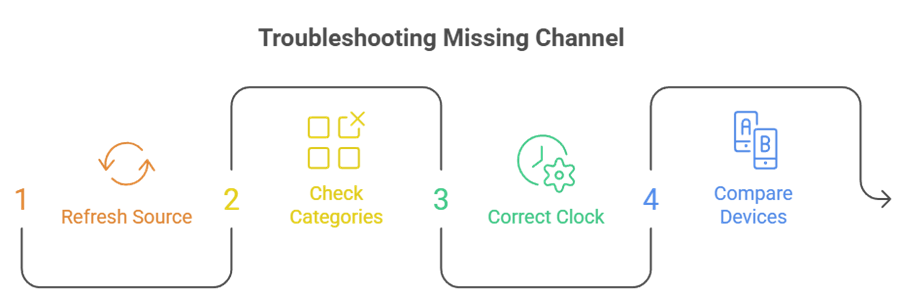
An empty guide is not the same failure as an empty playlist. Channels come from the provider’s playlist or API response; programme schedules come from EPG data. Determine which part is missing before refreshing everything.
- Refresh the source: Use the in-app update or refresh option and allow the full download to finish.
- Check categories: Search other groups and remove active filters before deciding a channel disappeared.
- Correct the clock: Enable automatic date, time, and timezone because schedule alignment depends on them.
- Compare devices: Missing items everywhere indicate provider data; one bad device suggests stale local data.
Clearing EPG data is reasonable; clearing the entire app remains a later, broader reset.
What to Send Support When Nothing Works
Good evidence shortens support conversations. Contact the provider when the account, streams, or EPG fail across devices. Contact Smarters Pro support when a confirmed working source fails only inside the official app after a clean update.
- Record the exact error text and the time it occurred.
- State the device model, operating-system version, and Smarters app version.
- Explain whether one channel, one category, or every stream fails.
- Report whether the same account works on another device, player, or network.
- List the safe steps already tried, but redact usernames, passwords, playlist URLs, and portal tokens.
A screenshot is useful only after every credential and private URL has been covered.
Alternatives If IPTV Smarters Pro Still Fails
Switch players only after the same authorized source works elsewhere or Smarters remains unstable on one device. A second player is also a diagnostic tool: success there proves the provider account and network can deliver a stream. These apps provide player software, not channels.
TiviMate
TiviMate is built for Android TV and Fire TV rather than touch-first phones. I would test it when Smarters works poorly on a television interface, especially if you want multiple playlists, search, favourites, catch-up, recording, and detailed guide controls. Its remote-friendly grid makes it easier to compare channels and spot whether only one source is failing.
- Best for: Android TV, Google TV, and Fire TV households.
- Supports: Multiple playlists, catch-up, recording, search, favourites, and multiview.
- Limitation: The interface is not optimized for phones or tablets.
Sparkle TV
Sparkle TV supports M3U/M3U8 playlists and XMLTV guide data on Android TV, Google TV, and Fire TV devices. My reason to try it is its TV-first interface and DVR/PVR approach when a Smarters-specific playback issue persists. Its separate playlist and guide controls also help isolate a working stream from an EPG-only fault.
- Best for: Viewers who prioritize recording and programme-guide controls.
- Supports: M3U, M3U8, XMLTV, DVR/PVR, favourites, and TV remotes.
- Limitation: It primarily targets Android-based television and streaming devices.
OTT Navigator
OTT Navigator is another Android-focused player with store and standalone versions. In my testing order, it belongs after credentials and provider status are confirmed, because a successful login here cleanly separates a Smarters installation fault from an upstream source problem. Its extensive filters are useful when a large playlist loads but particular categories appear missing.
- Best for: Large playlists that need filtering and category organization.
- Supports: Live streams, VOD libraries, multiple sources, filters, and favourites.
- Limitation: Its dense settings can take longer to configure properly.
Final Verdict
Most IPTV Smarters Pro failures become straightforward once you separate the player from the account and stream. Start with the exact symptom, verify the provider details and connection limit, and compare another device or network. Clear cache before data, save credentials before reinstalling, and treat one dead channel as a source issue rather than an app emergency. If a confirmed working playlist still fails only in Smarters after a clean update, another compatible player is a replacement.
Top 3 IPTV Smarters Pro Alternatives
- TiviMate: Best TV-first choice for Android TV and Fire TV.
- Sparkle TV: Best for M3U, XMLTV, and DVR-style controls.
- OTT Navigator: Best flexible alternative for Android-based devices.
FAQs
Why is IPTV Smarters Pro not working today?
Check whether the failure affects one channel, the whole playlist, or the app itself. Sudden failures across every device usually indicate account expiry, provider maintenance, a portal change, or an exhausted connection limit.
How do I fix authorization failed for above host?
Copy the exact provider-issued server address, username, and password again. Remove accidental spaces, preserve the supplied protocol and port, confirm the subscription is active, close other sessions, and ask the provider whether its portal changed.
Why does the app work on my phone but not my TV?
That result proves the account and source can work. Update and power-cycle the television, reinstall the official TV-store version, check its clock and storage, or use a supported Android TV/Fire TV player.
Will clearing the cache delete my IPTV login?
Clearing cache normally removes temporary files without deleting saved profiles. Clearing storage/data or uninstalling can erase them. Save the authorized server URL, username, password, and playlist information before either destructive reset.
Why do channels load but show a black screen?
Successful channel and guide loading means authentication worked. Test multiple feeds, switch an available player engine or decoder, check the device’s codec support, and report the channel to the provider if only one fails.
Why is my EPG empty in IPTV Smarters Pro?
Refresh the playlist and EPG, enable automatic date and timezone, and compare another device. If the guide is empty everywhere while channels play, the provider’s EPG source is missing, stale, or unavailable.
Does a VPN fix IPTV Smarters Pro?
Only when routing or network filtering is the cause. Compare home Wi-Fi with mobile data and test VPN off and on. A VPN cannot repair wrong credentials, an expired account, bad feeds, or provider downtime.
What should I do if IPTV Smarters Pro keeps buffering?
Test Ethernet or close-range 5 GHz Wi-Fi, compare several channels, and close other streams using the account. Persistent issues need the fuller IPTV buffering diagnostic rather than repeated app reinstalls.