
Key Takeaways
- Choose a compatible Android TV player and an authorised subscription.
- Confirm the app source and credential format before installation.
- Test live playback and programme-guide timing on the actual television.
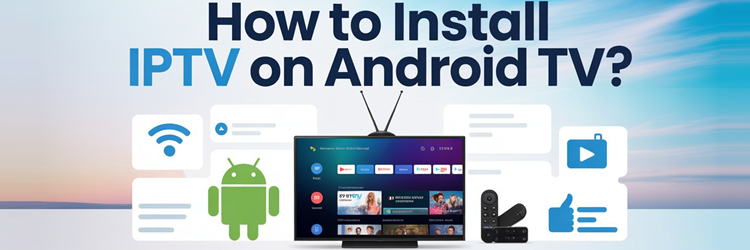
Installing IPTV on an Android TV is refreshingly simple compared with most devices, because Android TV runs proper apps and has its own Google Play store. Whether you own a Sony or Philips Android TV, a Chromecast with Google TV, or a cheap Android box, the process is the same: install a player, enter the login your provider gives you, and you are watching within a few minutes.
This guide walks through the whole setup on Android TV step by step, using IPTV Smarters Pro as the player and Xtream Codes as the login method. I have done this on several Android TV devices, and the same six steps work on all of them. There is no rooting, no computer, and no technical knowledge required. If you can install an app from a store and copy a few login details, you already have everything it takes. I have also added a troubleshooting section and a few player alternatives at the end, so even if something misbehaves the first time, you will have a fix close to hand.
Top IPTV Services I Recommend Before You Start
You need an active subscription before any of the steps below will do anything, because the player is only a shell that reads a provider’s channel list. If you do not have one yet, these are three services I have tested and trust on Android TV, each with a trial or guarantee so you can set up and confirm they work without risk. Each one lets you set up and stream on the same day you subscribe, so you can follow this guide end to end and have live channels running before any trial or refund window closes. I have used all three on Android TV specifically, not only on other devices.
- Tellystudio: Best value 4K, with a free one-day trial and cheap long-term plans.
- StreamingNordic IPTV: Very stable playback and family plans, with a free 24-hour trial.
- OrigineTV: The widest channel and VOD library, with a 24-hour trial and a lifetime option.
Methodology and Disclaimer
Every step in this guide was carried out on real Android TV hardware, not written from memory, so the menu names and prompts match exactly what you see on screen.
- Real hardware: Tested on an actual Android TV device, so each menu path is accurate.
- Apps are legal: Players like IPTV Smarters are neutral, lawful tools on their own.
- Content is your call: Legality depends on whether your provider licenses its channels.
- Install only: This guide covers setup and does not endorse unlicensed streaming.
When in doubt, favour reputable services that license their content and offer a proper trial. I have no commercial reason to favour one player over another here, and the steps are written to work whichever reputable provider you choose.
What You Need Before You Start
The setup is quick, but it helps to have everything ready first so you are not hunting for details halfway through. You need only four things, and most of them you already have.
- An Android TV device: A smart TV running Android TV, a Chromecast with Google TV, or an Android box.
- A stable internet connection: Around 25 Mbps for full-HD, more for 4K, ideally over a wired or 5GHz link.
- An IPTV subscription: Your provider’s Xtream Codes login or an M3U URL, sent to you by email.
- Ten spare minutes: The whole process rarely takes longer than that from start to finish.
Keep the login email from your provider open on your phone as you work through the steps, because you will need to copy the server address and credentials across exactly, and typing them from memory is where most people slip up.
Step 1: Enable Apps from Unknown Sources
If your provider’s recommended player is on the Google Play store, you can skip straight to installing it. To sideload IPTV Smarters using the Downloader app, you first need to allow installations from outside the store. Open Settings, go to Device Preferences, then Security & restrictions, and choose Unknown sources. Find the Downloader app in the list and switch it on. This tells Android TV to trust apps installed through Downloader. You only do this once, and you can turn it back off afterwards if you prefer to keep the setting locked down.
Step 2: Install the Downloader App
Downloader is a free tool that fetches app files so you can install them on Android TV. From the home screen, open the Google Play Store, search for Downloader by AFTVnews, and install it. If your player is already available on Play directly, simply search for it there and install it instead, then jump to Step 4. Otherwise, open Downloader once it has installed and allow it the storage permission it asks for, which it needs to save the app file before installing it.
Step 3: Install IPTV Smarters Pro
Inside Downloader, type the official download address for IPTV Smarters Pro into the URL box, or install it directly from the Play Store if it is listed for your device. Let the file download, then choose Install when Android TV prompts you. Once it finishes, you can delete the installer file to save space when Downloader offers to clear it. IPTV Smarters is the player most providers optimise for, which is why it is the safest first choice; TiviMate is a strong alternative if you prefer its interface, covered later in this guide.
Step 4: Open IPTV Smarters and Choose Login Mode
Launch IPTV Smarters from your app list. On the first screen it asks how you want to log in, and for almost everyone the right choice is Login with Xtream Codes API. This method pulls your channels, film library, and programme guide into tidy Live, Movies, and Series tabs automatically. The alternative, Load your playlist or file/URL, is for M3U links and works too, but Xtream Codes gives the cleaner, poster-led layout. Accept the terms prompt, then select the Xtream Codes option to continue.
Step 5: Enter Your Xtream Codes Credentials
Now enter the three details your provider emailed you: any name you like for the playlist, your username, your password, and the server URL exactly as supplied, including the http prefix and any port number. Type carefully, because a single wrong character is the most common reason a login fails. Double-check the server address in particular, then select Add User. IPTV Smarters will connect and begin building your channel list, which usually takes only a few seconds on a normal connection.
Step 6: First-Run Setup and Channel Test
Once the list loads, open the Live TV section and play a channel to confirm everything works. Give it a moment to buffer the first time, then try a second channel to check how quickly it changes. It is worth loading the programme guide and playing something from the Movies tab as well, so you know the whole subscription is active. If channels play smoothly, you are done; your Android TV is now a full IPTV setup, and future viewing is a single tap on the app.
Troubleshooting Common Install Issues
Most problems at this stage are small and quick to fix, and they almost always fall into one of four buckets.
- Login fails: Re-check the server URL and credentials for a stray space or wrong character.
- Channels buffer: Move closer to the router or drop the stream to a lower resolution.
- App will not install: Confirm Unknown sources is enabled for the Downloader app.
- One provider stutters: If others are fine, the fault is their servers, not your device.
- Black screen on one channel: Try another channel first, as a single dead stream rarely means the whole service is down.
Work through these in order and the vast majority of setup issues clear within a minute or two. If a fix does not stick, a quick restart of the Android TV itself clears a surprising number of one-off glitches before you need to reinstall anything.
Should You Use a VPN on Android TV for IPTV?
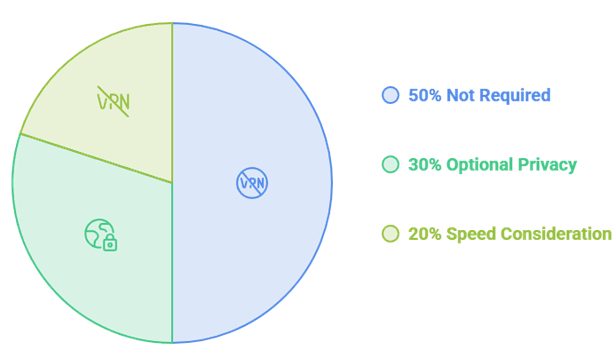
A VPN is not required to install or use IPTV on Android TV, and everything in this guide works perfectly well without one.
- Not required: IPTV installs and streams normally with no VPN in place.
- Optional privacy: Some viewers add one for privacy or to reach region-locked content.
- Pick a fast one: Choose a paid VPN with a proper Android TV app.
- Watch the speed: A slow VPN can introduce the very buffering you are avoiding.
For most people, a stable connection matters far more than routing IPTV through a VPN. If you do run one, connect the VPN first and then open the player, so the app starts with the connection already in place rather than reconnecting mid-stream.
Alternatives to IPTV Smarters Pro
IPTV Smarters is the easiest starting point, but it is not the only good player on Android TV, and switching is simple.
- TiviMate: The enthusiast favourite, with a slick interface and strong recording and guide features.
- GSE Smart IPTV: More flexible with awkward playlists and unusual stream formats.
- Same logins: Both accept your Xtream Codes or M3U details, so no new subscription is needed.
- Easy switch: If Smarters misbehaves, try TiviMate first before anything else.
Trying another player takes minutes and never affects your underlying subscription. It is also worth keeping a second player installed as a backup, because if one app has an off day with a particular stream, loading the same playlist in another often gets you watching again straight away.
Getting the Best Picture and Performance on Android TV
Once IPTV is installed, a few quick settings make the difference between an occasional stutter and a consistently smooth picture on Android TV.
- Use a wired link: An Ethernet cable or adapter beats Wi-Fi for steady 4K playback.
- Set the right resolution: Match the player output to your TV so it is not upscaling needlessly.
- Clear the cache: Occasionally clearing the player cache stops slow menus and stale guides.
- Close background apps: Freeing memory helps cheaper Android boxes hold a stable stream.
- Prefer HD over 4K: On a slower line, a stable HD stream looks better than a stuttering 4K one.
None of these are essential, but together they keep long viewing sessions smooth even on modest hardware. If quality dips only at busy times of day, the bottleneck is almost always your broadband rather than the Android TV or the app itself.
Final Verdict
Installing IPTV on Android TV really is a ten-minute job: enable Unknown sources if you are sideloading, add a player, and paste your Xtream Codes login. The device does the rest. The one thing that decides whether the experience is good or frustrating is the subscription behind it, so start with a provider that offers a trial and test it properly before you pay for a year. Get that right, and Android TV is one of the most reliable and pleasant ways to watch IPTV. Set aside ten minutes, keep your login details to hand, and start with a provider that offers a trial so you can judge the streams before committing. Once it is running, Android TV needs almost no maintenance and you will rarely open these instructions again.
Top 3 IPTV Services to Pair With This Guide
- Tellystudio: Best value 4K, with a free one-day trial.
- StreamingNordic IPTV: Very stable, with family plans and a 24-hour trial.
- OrigineTV: Widest library, with a lifetime option.
FAQs
How long does it take to install IPTV on Android TV?
Usually under ten minutes. Enabling Unknown sources, installing a player, and entering your Xtream Codes login are all quick steps, and building the channel list takes only a few seconds on a normal connection.
Do I need to root my Android TV for IPTV?
No. IPTV works on a completely standard Android TV with no rooting or modification. You only install a player app and enter your subscription details, which is a normal, supported process.
Which IPTV player should I install on Android TV?
IPTV Smarters Pro is the easiest starting point and the app most providers optimise for. TiviMate is the enthusiast favourite for its interface, and GSE Smart IPTV is the most flexible with unusual playlists.
What are Xtream Codes and where do I get them?
Xtream Codes are the username, password, and server URL your IPTV provider sends you by email after you subscribe. You paste them into the player, which then builds your channels and guide automatically.
Why is my IPTV buffering on Android TV?
Buffering is usually a connection issue. Move closer to the router or use a wired link, drop the stream to a lower resolution, or test another channel. If every channel lags, the provider’s servers are at fault.
Can I install IPTV on Android TV without the Play Store?
Yes. If a player is not on Google Play for your device, enable Unknown sources and use the Downloader app to sideload it. The player then works exactly the same as a Play Store install.
Do I need a VPN for IPTV on Android TV?
A VPN is not required and everything works without one. Some users add a fast paid VPN for privacy or region access, but a slow VPN can cause buffering, so a stable connection matters more.
Does this work on Chromecast with Google TV?
Yes. Chromecast with Google TV runs Android TV, so the same six steps apply. Install a player from Google Play or via Downloader, enter your Xtream Codes login, and you are ready to watch.