
Key Takeaways
USA LIVE IPTV leads for explicit Linux support and American-channel interest. OrigineTV is worth evaluating for M3U portability, while Stream IPTV 4K offers a provider-linked browser route and monthly entry plan. Already have a subscription? Start with IPTVnator for organised desktop viewing, Hypnotix on Mint, Kodi for a television interface, or VLC to check a stream. Confirm viewing rights and compatibility before paying.

The best IPTV for Linux starts with two separate choices: a service that supplies an authorised stream, and an application that can play it on your distribution. Buying a subscription does not install a Linux player, and a free player does not include premium channels. Confusing those roles is why many otherwise capable Ubuntu, Mint, Fedora, and Debian systems end up with a playlist that loads but never plays.
This guide compares five subscription options followed by three Linux players, then explains how to match them. The focus is practical compatibility: M3U and Xtream login formats, programme guides, browser limitations, codecs, and connection allowances. Recommendations draw on official documentation and published terms checked on 10 September 2026; they are not hands-on speed or reliability scores.
Best IPTV for Linux: Services and Players Ranked
Start with these 8 Linux: Services and Players picks and their standout points, then compare the table and full reviews for pricing, trial terms, and setup.
- USA LIVE IPTV: USA LIVE IPTV is the strongest starting point here for Linux users who primarily want American channels.
- OrigineTV: OrigineTV makes sense for households using Linux to browse a large international catalogue.
- Stream IPTV 4K: Stream IPTV 4K offers a useful alternative for Linux users who want a browser option alongside desktop playback.
- StreamingNordic IPTV: StreamingNordic IPTV suits Linux households looking for European coverage and a choice of connection packages.
- Tellystudio: Tellystudio is a monthly subscription option for Linux users who prefer to validate an account before considering a longer term.
- IPTVnator: IPTVnator is the best general-purpose Linux player in this comparison when an account includes Xtream credentials or a substantial M3U playlist.
- Hypnotix: Hypnotix is a natural starting point on Linux Mint for people who want an uncomplicated IPTV application.
- Kodi: Kodi is the strongest fit for a Linux computer connected to a television when remote-friendly navigation and a programme grid take priority.
Top 8 Editor Picks for Best IPTV for Linux
| Service | Advertised channels | Advertised VOD | Free trial | Link |
|---|---|---|---|---|
| USA LIVE IPTV | 20,000+ | 136,000+ | Confirm availability | Visit |
| OrigineTV | 55,000+ | 270,000+ | 24 hours advertised | Visit |
| Stream IPTV 4K | 20,000+ | 60,000+ | 36 hours advertised | Visit |
| StreamingNordic IPTV | 30,000+ | 200,000+ | Offered; duration unclear | Visit |
| Tellystudio | 30,000+ | 157,000+ | 1 day advertised | Visit |
| IPTVnator | Separate IPTV service required | Provider library required | Free app; no trial needed | Visit |
| Hypnotix | Separate IPTV service required | Provider library required | Free app; no trial needed | Visit |
| Kodi | Separate IPTV service required | Provider library required | Free app; no trial needed | Visit |
Catalogue totals and trial offers are provider claims, not independently counted results. The reviews below explain the documented Linux route and the terms that still need confirmation.
Affiliate disclosure: the first five services are sponsored placements and may earn this site a commission. Player projects are independent. Placement does not verify a provider’s content rights or guarantee its uptime.
Best IPTV for Linux Reviewed
1) USA LIVE IPTV
USA LIVE IPTV is the strongest starting point here for Linux users who primarily want American channels. Its website explicitly lists Linux among supported computer platforms, while its setup documentation describes M3U playlists and Xtream credentials. I would start by checking the exact local stations required, rather than the advertised channel total.
The service supplies access; a separate Linux player handles playback. IPTVnator is a practical companion for an Xtream account, while Kodi suits a television connected to a Linux PC. Confirm the account format before paying, because general device compatibility does not establish performance on a particular distribution.
Features
- Linux listing: The provider explicitly names Linux alongside Windows and macOS, offering a clearer compatibility signal than a generic claim that every smart television or device works.
- Account formats: Official setup guides describe both M3U playlists and Xtream credentials, letting users select a compatible Linux player without relying on Android emulation or unofficial wrappers.
- US coverage: The advertised catalogue emphasizes American local and regional stations; check exact call signs and time zones because a national network name may represent several feeds.
- Guide information: EPG and catch-up appear in the advertised package, but verify guide coverage and archive access for individual channels using the player selected for everyday viewing.
- Connection allowance: Displayed standard plans include one connection, so simultaneous viewing or a separate recording stream may require another connection even when both run on one computer.
- Payment structure: Plans are advertised as non-recurring, making the upfront billing period more useful than headline monthly equivalents when comparing this subscription against services offering monthly purchases.
- My take: The explicit Linux reference earns attention, but conflicting refund messages make written terms and a working sample account essential before committing to the longer packages.
Pros
- Linux explicitly listed as supported
- M3U and Xtream documented
- Strong emphasis on US stations
- One-connection allowance clearly displayed
- Non-recurring plans advertised
Cons
- No dedicated Linux installer identified
- Refund messages differ between pages
- Quarterly entry plan requires upfront payment
Pricing
- Short plans: $49.96 for three months; $95.98 for one year on the displayed one-connection plans.
- Trial: Confirm retail trial availability; reseller trial tools do not guarantee a consumer trial.
- Refund Policy: Pages advertise different windows, including 30 and 7 days. Obtain written clarification.
2) OrigineTV
OrigineTV makes sense for households using Linux to browse a large international catalogue. Its published plans explicitly include M3U and EPG, which are the two ingredients needed for a conventional Linux channel list and programme guide. I would shortlist it for playlist portability rather than treat its catalogue size as proof of quality.
An M3U account can move between compatible players without installing a provider-specific Linux application. That flexibility is useful when one playback engine struggles with a particular stream. The advertised trial provides an opportunity to check favourite channels, while the three-month entry package deserves attention before purchase.
Features
- M3U access: Published plans list M3U support, providing a straightforward route into VLC, Hypnotix, IPTVnator, or Kodi when the supplied playlist contains compatible, accessible streams for playback.
- EPG availability: An electronic programme guide is advertised with the subscription; request the actual XMLTV address and confirm channel identifiers match before assuming programme listings populate automatically.
- Catalogue filtering: A very large advertised library can become unwieldy on a desktop, so begin with preferred countries and language groups instead of importing every category indiscriminately.
- Trial window: The advertised twenty-four-hour trial can cover installation and an evening viewing session, provided activation timing and the included channels are confirmed before the clock starts.
- Plan separation: The website distinguishes one-connection and two-connection packages, helping households budget for a Linux computer used alongside another television without assuming device installations equal concurrent streams.
- Renewal terms: The provider says subscriptions do not renew automatically; retain the order confirmation and renewal date so an expired account is not mistaken for a Linux fault.
- My take: M3U portability is the useful selling point here; prioritize a small working channel group and complete guide data over an impressive but unverified catalogue headline.
Pros
- M3U included in published plans
- EPG availability explicitly advertised
- Twenty-four-hour trial advertised
- Separate connection packages shown
- No automatic renewal advertised
Cons
- No native Linux app documented
- Initial standard term is three months
- Refund conditions need checkout verification
Pricing
- Short plans: €34.99 for three months; €48.99 for six months, with one connection.
- Trial: Free 24-hour trial advertised; confirm its availability and activation time.
- Refund Policy: Check the applicable written conditions before paying; no unconditional guarantee assumed.
3) Stream IPTV 4K
Stream IPTV 4K offers a useful alternative for Linux users who want a browser option alongside desktop playback. Its official website links a web player and publishes a monthly plan, avoiding a long initial subscription. I would compare the web route with a local player during the advertised thirty-six-hour trial.
Browser compatibility still depends on the stream format, codecs, and the service configuration. A channel that fails in Firefox can work in a desktop player without any change to the subscription. Request the correct account details and playlist format before assuming every advertised feature is available through the browser.
Features
- Web access: The official site links a browser player, giving Linux users an installation-free entry point while leaving codec compatibility and successful account authentication to be checked.
- Monthly purchase: A displayed monthly package reduces the initial commitment compared with quarterly entry plans, which is helpful when Linux compatibility still needs checking on personal hardware.
- Longer trial: The advertised thirty-six-hour trial allows more scheduling flexibility than a brief demonstration, but confirm the activation window and whether the trial matches the intended package.
- Country selection: The provider asks buyers to select countries at checkout; request the relevant regions first so the resulting catalogue better matches household languages and regular viewing.
- Playback comparison: Use the provider-linked web player as a second diagnostic route when a desktop application fails, while remembering that browser restrictions can also cause independent failures.
- Guide expectations: Live television and EPG are advertised together, although browser guide features may differ from desktop applications; check the exact interface rather than assuming feature parity.
- My take: The monthly commitment and web option are attractive for experimentation; successful playback of the same channel through two routes gives a more useful compatibility check.
Pros
- Official website links a web player
- Monthly plan available
- Thirty-six-hour trial advertised
- Country selection available during ordering
- No automatic renewal advertised
Cons
- Browser codec support can vary
- Linux desktop build not documented
- Refund policy page could not be verified
Pricing
- Monthly Plan: $14.99; the three-month package is displayed at $39.99.
- Trial: Free 36-hour trial advertised on the official homepage.
- Refund Policy: Homepage advertises three days; linked policy was unavailable during research. Confirm conditions.
4) StreamingNordic IPTV
StreamingNordic IPTV suits Linux households looking for European coverage and a choice of connection packages. The provider publishes M3U and Xtream setup guidance, allowing compatible desktop players to receive the account. I would compare the exact language groups needed and request a sample guide before choosing a longer subscription.
Its public pricing separates single-device plans from family packages, which helps when a Linux machine shares the subscription with other screens. The linked storefront currently opens on a Portuguese page, so confirm the selected language, currency, and package rather than assuming the first page represents a different provider.
Features
- Playlist delivery: Official installation guidance describes M3U links and Xtream credentials, creating a documented route into Linux players even though the tutorials themselves emphasize other device types.
- European viewing: The catalogue is promoted across several European markets; compare actual language groups, regional stations, subtitles, and schedules instead of treating the Nordic name as coverage.
- Family packages: Separate two-screen and three-screen annual packages are advertised, making concurrent viewing easier to budget when the Linux desktop is only one screen in the household.
- Currency choice: Euro and dollar storefront displays differ, so compare the billed total in the selected currency rather than copying a monthly equivalent from another localized page.
- Replay checks: Catch-up appears on advertised packages, but availability depends on channel archives and player support; test an actual previous programme before relying on replay for viewing.
- Installation questions: Ask support to confirm the account format, playlist address, and guide source together, reducing the chance of receiving instructions written only for a television application.
- My take: Clear package and currency selection matters most here; validate one account in a Linux player before extending it to the household or adding extra screens.
Pros
- M3U and Xtream guidance published
- Monthly entry option displayed
- Separate family connection packages
- Euro pricing clearly available
- Multiple regional language pages
Cons
- Linked storefront opens in Portuguese
- Trial duration not consistently clear
- Native Linux package not documented
Pricing
- Monthly Plan: €14.99; three months €29.99 on the euro storefront.
- Trial: Free trial promoted; confirm duration, availability, and included channels.
- Refund Policy: Obtain the applicable written policy before purchase; a fixed window was not verified.
5) Tellystudio
Tellystudio is a monthly subscription option for Linux users who prefer to validate an account before considering a longer term. Its setup guide describes M3U playlist delivery, while the homepage advertises a one-day trial. I would use that trial to confirm compatibility with the chosen desktop player and required channels.
The provider does not document a dedicated Linux application on the pages reviewed. Its role in this list is therefore a playlist source to evaluate with Linux software. Published channel and library totals are marketing figures, and the practical question is whether the smaller selection needed every day works reliably.
Features
- M3U workflow: The provider’s television setup guide explicitly describes uploading an M3U playlist; request that account format for Linux rather than downloading a similarly named unofficial application.
- Trial access: A one-day trial with one connection is advertised, offering an opportunity to check playlist import, a live channel, guide information, and a representative on-demand item.
- Monthly billing: The homepage displays a fifteen-dollar monthly purchase alongside longer packages, allowing the initial payment to stay proportionate while a new Linux arrangement is being evaluated.
- Guide coverage: An electronic television guide is promoted, but a Linux player may need a separate XMLTV source; ask for that address alongside the main playlist credentials.
- Viewing allowance: The displayed trial and standard packages specify one connection, so close other playback sessions before diagnosing a rejected stream as an application or operating-system problem.
- Support preparation: Keep the distribution name, player version, error message, and affected channel ready when contacting support; share redacted screenshots instead of exposing complete account credentials publicly.
- My take: The short trial and monthly price make a cautious comparison possible; confirm refund conditions because a general guarantee does not define an enforceable deadline alone.
Pros
- One-day trial advertised
- Monthly plan clearly displayed
- M3U delivery described in official guide
- EPG included in marketing information
- One-connection limit explicitly stated
Cons
- No dedicated Linux app documented
- Refund deadline not clearly established
- Storefront routing needs checking before payment
Pricing
- Monthly Plan: $15 for 30 days; quarterly package $35 on the homepage.
- Trial: One day, one connection, advertised at $0.
- Refund Policy: A general guarantee is advertised, but no specific deadline was verified.
6) IPTVnator
IPTVnator is the best general-purpose Linux player in this comparison when an account includes Xtream credentials or a substantial M3U playlist. The upstream project documents XMLTV guide support, favourites, search, and external playback. I would start here on a desktop when organised browsing matters more than a television-style media centre.
It is free software, not a source of subscription channels. Download from the project’s own website or release links and choose a package matching the distribution and processor. Desktop and browser editions have different capabilities, so a successful web demonstration should not be treated as a complete desktop feature checklist.
Features
- Source flexibility: The project documents M3U, M3U8, Xtream, and Stalker sources, so choose the matching import method instead of placing every type of address into one field.
- Desktop guide: XMLTV support and a channel guide help organise live viewing, provided the source includes valid programme data and identifiers that match the imported playlist entries.
- External playback: Desktop editions can launch MPV or VLC, offering a useful alternative when the integrated player encounters a stream format or codec it cannot handle successfully.
- Channel organisation: Favourites, groups, and search reduce repeated scrolling through large catalogues, making a small set of regularly watched channels easier to reach during everyday desktop use.
- Package differences: Linux installation formats and playback integrations have different requirements; follow the release documentation for the chosen package rather than assuming every sandboxed installation behaves identically.
- My take: This is the most practical first player for mixed account formats; keep an external playback option available and verify the release notes before expecting advanced features.
Pros
- Multiple account formats documented
- XMLTV programme guide support
- Useful favourites and channel search
- External MPV or VLC playback
- Free desktop application
Cons
- No channels included
- Desktop and browser features differ
- Some playback integrations require additional configuration
Pricing
- Price: Free and open source from the official project.
- Subscription: No IPTVnator channel subscription is required or supplied.
- Requirement: Provide an authorised playlist or compatible provider account.
Link: https://4gray.github.io/iptvnator/
7) Hypnotix
Hypnotix is a natural starting point on Linux Mint for people who want an uncomplicated IPTV application. Its maintained project documents M3U URLs, local playlists, and Xtream API accounts, with sections for live television, movies, and series. I would choose it when straightforward browsing matters more than extensive guide customisation.
The application is separate from its configured providers. The upstream documentation describes a default Free-TV source selected for publicly available channels, and users can add their own authorised accounts. Availability outside Mint depends on distribution packaging, so confirm the installation source instead of assuming an official package exists for every Linux system.
Features
- Linux focus: Developed within the Linux Mint ecosystem, Hypnotix uses Linux desktop components and libmpv playback, making it a sensible first application to inspect on Mint installations.
- Import choices: Upstream documentation explicitly lists remote M3U URLs, local M3U playlists, and Xtream API providers, allowing the account type to determine the appropriate configuration screen directly.
- Content sections: Live television, movies, and series have separate browsing areas, but their contents depend on the configured provider rather than a subscription bundled with the application.
- Default source: The project describes a Free-TV provider selected for public channels; availability remains source-dependent, and users can remove it or add another authorised playlist when needed.
- Wayland guidance: The project documents an X11-based workaround for Wayland issues, so consult the current instructions if a blank video window appears on an otherwise working desktop.
- My take: Mint users should try this familiar option before assembling a larger media centre; confirm guide and archive requirements separately when those features determine the choice.
Pros
- Designed within the Mint ecosystem
- M3U and Xtream support documented
- Local playlist import supported
- Simple content browsing sections
- Free application with upstream documentation
Cons
- Packaging varies outside Linux Mint
- Guide requirements need separate checking
- Wayland may require documented configuration
Pricing
- Price: Free and open source.
- Subscription: Paid providers are optional and billed separately.
- Requirement: Use an available authorised source and a supported Linux package.
Link: https://xapp-project.org/
8) Kodi
Kodi is the strongest fit for a Linux computer connected to a television when remote-friendly navigation and a programme grid take priority. IPTV Simple Client imports M3U channel data and XMLTV listings into its television interface. I would select it for a living-room system rather than occasional viewing beside other desktop applications.
Kodi itself does not sell channel packages, and the IPTV add-on requires configuration. Use the M3U and XMLTV workflow documented by the official project; do not assume a generic Xtream login screen exists in every PVR client. Scheduled recording also needs a recording-capable backend or another suitable solution.
Features
- Television interface: Kodi’s media-centre layout works well with a remote or keyboard across the room, making channel browsing more comfortable than managing a compact desktop playlist window.
- Playlist integration: The official IPTV Simple Client uses M3U channel information and XMLTV guide data, keeping source selection separate from the appearance of Kodi’s television navigation interface.
- Channel mapping: Guide matching relies on channel identifiers or names; inspect those fields when video works but programme listings are missing for only part of the catalogue.
- Archive support: IPTV Simple Client documents catch-up support for compatible sources, but that uses provider archives and should not be confused with a local scheduled recording service.
- Linux packaging: Install Kodi and a matching IPTV Simple Client package from appropriate documented sources; distribution packages and add-on availability can differ between releases and installation methods.
- My take: Choose Kodi for a television-focused Linux system with an EPG requirement; budget setup time and select a proper backend if reliable scheduled recording is essential.
Pros
- Comfortable television-style navigation
- M3U and XMLTV integration
- Detailed channel grouping and guide
- Compatible catch-up sources supported
- Free media-centre software
Cons
- More configuration than a simple player
- No subscription channels included
- DVR requires additional recording capability
Pricing
- Price: Kodi and IPTV Simple Client are free.
- Subscription: Any paid channel source is purchased separately.
- Requirement: Supply compatible M3U and guide data; recording may need additional software and storage.
Link: https://kodi.tv/
How Did We Evaluate IPTV for Linux?
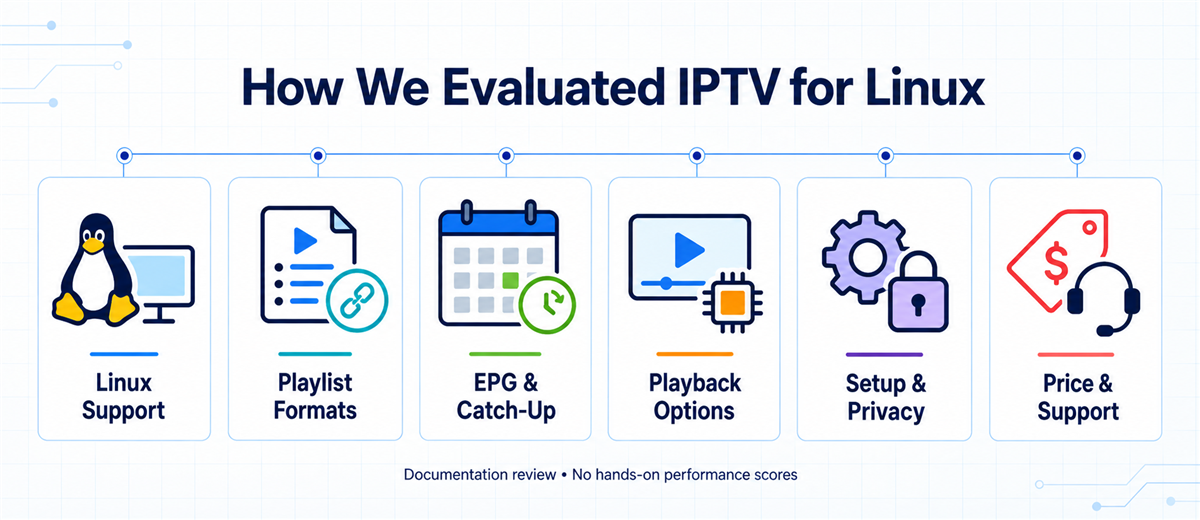
I compared twelve competing Linux guides with current provider pages and upstream player documentation, prioritising an identifiable playback route over catalogue size. A Linux mention, an M3U option, and an Android tutorial are different kinds of evidence. Each recommendation above explains what is documented and what should still be checked on the actual computer. No paid accounts were purchased and no playback benchmarks were conducted.
- Compatibility evidence: Explicit Linux support, documented playlist formats, and maintained player downloads carried more weight than broad device claims.
- Usable features: Guide data, catch-up, recording, browser playback, and external players were assessed as separate capabilities with source dependencies.
- Practical setup: Distribution packaging, processor architecture, Wayland behaviour, and credential handling informed the installation and troubleshooting recommendations below.
- Commercial clarity: Published prices, connection allowances, trial access, and refund wording were checked; conflicting or inaccessible terms remain flagged.
Which Linux Player Fits Your Account and Desktop?
Choose software after identifying the credentials supplied by the service. A native desktop player avoids some browser restrictions, while a full media centre adds a guide-oriented interface. Package availability also matters: an x86-64 AppImage cannot simply be installed on every ARM computer, and Mint-specific packaging is not a universal Ubuntu or Fedora installer.
| Player | Account route | Best fit | Main limitation |
|---|---|---|---|
| IPTVnator | M3U / Xtream / supported portals | Desktop channel and guide browsing | Package and playback-backend differences |
| Hypnotix | M3U / Xtream | Straightforward Linux Mint viewing | Check guide needs and other-distro packaging |
| Kodi + IPTV Simple | M3U + XMLTV | Linux PC attached to a TV | Setup required; DVR is separate |
| VLC | Network stream / M3U | Quick playback and fault isolation | No full IPTV account dashboard |
Install from the upstream project or a trusted distribution source, then update through that same supported route.
Set Up M3U or Xtream IPTV on Linux
Ask the provider for the exact server address, account credentials, playlist format, and XMLTV guide URL where applicable. Keep the supplied scheme and port unchanged; request a supported HTTPS endpoint if available. The steps below start with an existing authorised account. For the wider account-to-player process, see the IPTV setup guide.
- Install the player: Choose the correct Linux package from its official project; on supported Ubuntu systems, VLC is also available through the software centre or APT.
- For M3U: In VLC, select Media → Open Network Stream and paste the complete playlist URL. Use the playlist view to choose a channel.
- For Xtream: In IPTVnator or Hypnotix, select the matching provider type and enter server, username, and password separately. Do not substitute a portal URL.
- For Kodi: Configure IPTV Simple Client with the M3U source, then its XMLTV guide source. Enable the add-on and allow the channel list to refresh.
Start with one live channel, then check favourites, guide entries, and a second channel before importing everything.
Make EPG, Catch-Up, and Recording Work Correctly
These features solve different problems. EPG displays programme listings; catch-up retrieves an archive supplied by the service; DVR saves a recording through suitable software. A visible guide proves none of the other two. Kodi’s IPTV Simple Client handles playlist, guide, and compatible catch-up configuration. Treat recording as its own requirement.
- Missing listings: Check the XMLTV URL and refresh date; compare playlist tvg-id values with the guide’s channel identifiers.
- Wrong times: Set the system time zone correctly before applying an EPG offset that could hide the actual cause.
- Unavailable replay: Confirm that the specific channel offers archives and the player supports the provider’s catch-up URL format.
- Scheduled recordings: Use a recording-capable backend such as Tvheadend, with storage, wake settings, and sufficient simultaneous connections configured.
Test a short permitted recording and replay it before depending on an unattended schedule for an important programme.
Fix Linux IPTV Playback Without Guessing
Use the same channel for comparisons and change one variable at a time. A failure limited to one application points somewhere different from failure across every device. Browser playback adds codec, CORS, and mixed-content restrictions; network access and desktop playback can behave differently. Keep the original settings recorded so experimental changes are easy to reverse.
- Nothing plays: Check expiry, credentials, exact server address, and connection limits; retry a known working authorised source in VLC.
- Only 4K stutters: Compare CPU load and dropped frames, try wired networking, and check supported hardware decoding for that codec.
- Blank Wayland window: Consult the chosen project’s Wayland guidance; test its documented X11 route instead of changing unrelated network settings.
- Browser alone fails: Try a local player; do not disable browser protections or upload credentials to an unknown proxy website.
If one channel fails across players, report that channel and timestamp to the provider with credentials redacted.
Check a Linux IPTV Subscription Before Committing
A provider’s compatibility claim is only a starting point. Use a trial to check your distribution, player, network, and preferred channels together. Ask about viewing rights in your location and keep the order terms. An impressive channel list, brand logo, or VPN claim does not establish that a service has permission to distribute the content.
- Test at viewing time: Try the channels during the hours you actually watch, including audio tracks, subtitles, and guide accuracy.
- Count concurrent streams: Confirm whether recording and another television need additional connections; installed devices and simultaneous playback are different limits.
- Compare billed totals: Separate a true monthly plan from a monthly equivalent charged upfront for a quarter or several years.
- Protect account details: Treat playlist URLs as passwords; keep them out of public paste sites, shared screenshots, and shell history.
Choose the shortest practical commitment until the account, support response, and everyday Linux playback meet the requirements.
Final Verdict
The best Linux IPTV arrangement combines a documented account format with software suited to the screen. Prioritise explicit compatibility, a usable programme guide, and clear payment terms over an oversized channel count. Start with the smallest practical commitment and check the channels actually watched, at the times they matter. A desktop player, television interface, and browser each have different strengths; keeping a simple fallback player makes diagnosis easier. Choose a source with appropriate viewing rights, protect its credentials, and confirm connection allowances before adding recordings or other screens. Successful setup is more valuable than an unsupported promise of universal compatibility.
Top 3 Recommended
- USA LIVE IPTV: Explicit Linux support and documented accounts for an American-channel shortlist.
- OrigineTV: M3U portability and an advertised trial for comparing Linux player compatibility.
- Stream IPTV 4K: Monthly entry and a provider-linked browser option for initial playback checks.
FAQs
What is the best IPTV player for Linux?
IPTVnator is the most flexible starting point for mixed M3U and Xtream accounts. Hypnotix suits Linux Mint, Kodi suits a television connected to a Linux computer, and VLC is useful for direct playback checks. Choose according to the supplied account format and interface needed.
Can I watch IPTV on Ubuntu, Fedora, or Debian?
Yes, using a compatible application and an authorised source. Package availability differs between distributions and releases, so follow the player’s current installation documentation. A subscription advertising computer support does not necessarily include a native Linux application or guarantee every codec on your hardware.
Do Linux IPTV players include free channels?
Most players supply software only. Hypnotix documents a default Free-TV provider for publicly available channels, while allowing additional sources. Free software does not make a paid channel free. Use sources you are entitled to access and check whether each stream is available locally.
Can TiviMate or an Android APK run directly on Linux?
An Android APK is not a native Linux desktop package. Compatibility layers are a separate setup and can introduce additional problems. For this guide, the simpler route is a maintained Linux player that accepts the same authorised account format supplied by your provider.
Should I choose M3U or Xtream Codes on Linux?
Use Xtream when the player offers that account type and the provider supplies server, username, and password. Use M3U for playlist-based players, adding XMLTV separately when required. Both can expose account credentials, so neither format should be pasted into a public troubleshooting post.
Why are channels working but the EPG is empty?
The stream and guide are separate resources. Check the XMLTV address, update status, time zone, and channel identifiers before replacing the subscription. Our EPG guide explains their relationship. A working channel cannot generate missing programme information by itself, even after restarting.
Can I record IPTV on a Linux PC?
Yes, with suitable recording software, permission to record the content, enough storage, and sufficient provider connections. Kodi’s guide or provider catch-up alone does not establish DVR capability. A backend such as Tvheadend is designed for recording workflows, but it requires separate setup and maintenance.
Why does 4K IPTV stutter while HD works?
The higher-resolution stream may exceed the available bandwidth or the computer’s decoding capability. Compare CPU load, dropped frames, and wired playback, then check the player’s hardware-decoding settings. A fast speed test alone does not confirm that a particular GPU supports the stream’s codec and profile.
Is a VPN required for IPTV on Linux?
No universal requirement applies to ordinary IPTV playback. A VPN changes the network path and may improve or worsen performance; it also adds another variable when troubleshooting. It does not grant viewing rights. Start with authorised sources and diagnose the account, player, and connection separately.