
Key Takeaways
- Identify whether the app, playlist login, or channel playback is failing.
- Restart the device and test unrelated channels before resetting playlists.
- Compare another player without using more simultaneous connections than your plan permits.
TiviMate not working? First check whether the app opens, the playlist loads, and any channel plays. Force stop the app, restart the streaming device, and test three unrelated channels. Then check your provider account and compare the same stream in another player, closing the first session before starting the second. Keep your saved playlists intact until those checks identify a reason to reset them.
I would start with that comparison because a blank guide, rejected playlist, black picture, and missing Premium features need different repairs. TiviMate supplies the player; your provider supplies the channels. Buying Premium cannot renew an expired channel subscription. Follow the matching section below, change one setting at a time, and stop when playback recovers. Menu wording can vary with the installed app version and device software.
Find Which Part of TiviMate Is Failing
Record what appears before the failure: the home screen, channel names, programme guide, or video. A saved channel list can remain visible after an account expires, so its presence does not prove the stream is currently authorized. Use this table to choose the next check before changing any settings.
| Symptom | Useful distinction | First check |
|---|---|---|
| App crashes or will not open | Installation or device trouble | Restart, storage, official updates |
| Playlist cannot be added | Address, authentication, or reachability | Recheck the provider-issued login details |
| One channel fails | Individual feed may be unavailable | Try three unrelated channels |
| All streams fail | Account, network, or playback path | Compare the same source in another player |
| Video works; EPG is blank | Guide data is separate from video | Update EPG and check source assignment |
| Premium tools are locked | Player entitlement is separate | Check the TiviMate purchase account |
A comparison narrows the possibilities; it does not prove which company or setting caused the failure.
Repair Playlist Login and HTTP Errors
Use the login method your provider supplied. An M3U address belongs in the playlist URL field; an Xtream Codes setup separates the server address, username, and password. Copy each value exactly, including its protocol and port. Remove surrounding spaces without rewriting the address or trying random replacement domains.
- Recheck credentials: Compare letters, capitalization, and similar characters such as zero and O against the activation message.
- 401 or 403: Ask about authorization, account restrictions, and allowed connections; neither code proves an ISP block.
- 404: Confirm the playlist or stream address still exists. A VPN cannot restore a deleted resource.
- 5xx: The responding server reports a failure; provide the exact code and timestamp to your provider.
These response codes describe server outcomes, not a universal TiviMate diagnosis. Report parser errors separately; the response may not be a usable playlist.
Check Provider Expiry and Occupied Connections
When every channel stops suddenly, verify the channel subscription before reinstalling the player. A provider can change its server address, suspend an account, or run out of available stream capacity. TiviMate Premium and provider subscriptions are separate purchases, with separate support contacts and access rules.
- Expiry: Check the provider account or renewal message, including whether a trial has ended.
- Sessions: Stop playback on other devices and cancel active recordings before testing one channel again.
- Multiview: Each additional stream may consume another permitted connection, even on the same television.
- Address changes: Request the current server details through your existing provider contact, avoiding public credential checkers.
If the account fails across players and networks, ask the provider to inspect it before resetting devices.
Isolate Wi-Fi, VPN, and Server Reachability
A fast speed test measures one route at one moment; it does not prove that your playlist server is reachable. Compare the same channel under controlled conditions. Keep the device and account unchanged so the result identifies which connection deserves closer investigation.
- Local connection: Pause large downloads and compare Ethernet with Wi-Fi near the router, where practical.
- Second network: Briefly test a permitted mobile hotspot; watch the data allowance and stop other sessions.
- Existing VPN: Compare disconnected and connected playback if permitted. Ask whether your provider restricts changing IP addresses.
- Secure connection errors: Check automatic date and time; ask the provider to repair certificate problems.
Change DNS or VPN settings only when the comparison supports it. Neither repairs an expired account.
Fix Crashes Without Losing Your Playlists
Start with force stop and a device restart. Clearing temporary cache differs from deleting application data, which can remove saved settings. Before a reset, preserve login details and, if available, export a TiviMate backup somewhere that survives uninstalling the app.
- Fire TV: Settings → Applications → Manage Installed Applications → TiviMate → Clear cache.
- Android TV: Settings → Apps → TiviMate → Clear cache; some versions place it under Storage.
- Update: Check device updates and the verified Google Play listing or developer’s official download.
- Reset last: Clear data or reinstall only after saving credentials and settings; both can remove profiles.
- Retest cleanly: Add one playlist before restoring the backup, which could reintroduce the faulty configuration.
After an update-related failure, record both app and operating-system versions before considering any rollback.
Resolve Black Screen, No Sound, and Buffering
If the interface responds but video fails, compare a standard HD channel with the affected stream. Decoder compatibility varies by device and media format, especially when a stream uses a codec your hardware cannot decode reliably. Open Settings → Playback for available controls, preserving the original values before each test.
| Problem | Controlled test | What to do next |
|---|---|---|
| Sound but black picture | Video decoder: Hardware versus Software | Keep only an improvement; software can struggle with demanding streams |
| Picture but no sound | Another audio track; disable passthrough temporarily | Check TV or receiver audio compatibility |
| Repeated buffering | Increase Buffer size one step, then compare | Revert if worse; no universal best buffer exists |
| One movie fails | Open that item in an external player | Report the title if it fails there too |
| Whole HDMI picture disappears | Check cable, input, and device power | Treat complete signal loss separately from a black video window |
Retest the same stream for several minutes. Successful external playback narrows the fault but does not identify one guaranteed fix.
Restore Premium, Recording, and Catch-up Features
TiviMate Premium unlocks application features; it does not supply channels or renew a provider subscription. When ordinary playback works but a feature does not, troubleshoot that feature’s entitlement and dependencies. Re-entering the provider playlist cannot repair the wrong TiviMate account, and renewing Premium cannot create missing provider archives.
- Premium login: Use the TiviMate account associated with the purchase, not the provider’s playlist username and password.
- Activation: Check the correct account and available device activation allowance before purchasing again; contact official support if needed.
- Recording: Test a short recording with writable storage, free space, an awake device, and sufficient provider connections.
- Catch-up: Confirm the channel actually offers archives and that the requested programme remains within its retention window.
Recording stores a stream locally; catch-up requests an existing archive. Diagnose these as separate features.
Repair Missing Channels and EPG Information
Refresh the playlist when channels are missing; refresh EPG when channels play but programme information is absent. These downloads serve different purposes. Avoid deleting a working playlist merely to repair a guide. A time offset also needs a different check from completely missing programme data.
- Channels: Settings → Playlists → select the playlist → Update playlist; check hidden groups and favourites filters.
- Guide: Settings → EPG → Update EPG; check the update result and assigned source.
- Partial gaps: Check channel-to-guide matching; similarly named regional channels may use different EPG identifiers.
- Wrong times: Correct the device timezone before changing an EPG time offset.
If schedules are absent in other players too, ask the provider to check its guide data.
Collect Useful Evidence for Support
Contact your provider for account, feed, and guide problems that follow the source. For a reproducible app-only fault, use support@tivimate.com, listed on the official website. Include a short comparison log so support can see what changed and which checks already failed.
- The device model, operating-system version, and TiviMate version.
- Exact error wording, affected channel or title, and time with timezone.
- Whether the same stream works in another player, tested sequentially.
- Whether the result changes on another network or without an existing VPN.
- The last working date and any recent app, firmware, or provider changes.
Redact passwords and full playlist URLs. For setup recovery, follow our TiviMate installation guide.
Alternatives When Only TiviMate Still Fails
These are player alternatives, not replacement channel subscriptions. Compare the same authorized stream sequentially and keep the provider account unchanged. If every player fails, switching software is unlikely to fix the underlying source. The order below moves from a simple playback check to fuller television interfaces.
VLC
Link: https://www.videolan.org/
VLC is a useful first comparison when a movie plays audio but the picture fails in the built-in player. I would open the same authorized stream here before changing every TiviMate setting. Its broad format support helps investigate playback compatibility, although it does not reproduce a full television guide or provider-account management interface.
- Best for: Checking one problematic stream or locally saved recording.
- Supports: Network streams, multiple audio tracks, subtitles, and common formats.
- My take: A diagnostic player, rather than a complete guide replacement.
Sparkle TV
Link: https://www.sparkleplayer.com/
Sparkle TV offers a television-oriented alternative with M3U, Xtream Codes, and XMLTV support. My priority would be checking the same source and EPG before transferring favourites or recording schedules. Its official feature list separates Basic from Plus, so confirm that the required DVR, multiview, or timeshift feature is included before committing to a replacement.
- Best for: Rebuilding a remote-friendly television and programme-guide experience.
- Supports: Playlists, XMLTV, audio tracks, and optional Plus recording features.
- My take: Test the source before paying for additional features.
OTT Navigator
Link: https://ottnav.github.io/
OTT Navigator suits Android users who need detailed source and channel controls. I would use it when a playlist loads but group organization or playback behaviour makes troubleshooting difficult. Its official FAQ explains provider-specific access errors and configurable playback options. That flexibility is useful, although the extra settings require more care than a basic stream test.
- Best for: Investigating large playlists and organizing multiple sources.
- Supports: Live streams, VOD, channel filters, and selectable playback options.
- My take: Keep initial settings simple for a useful comparison.
How Did We Evaluate These Fixes?
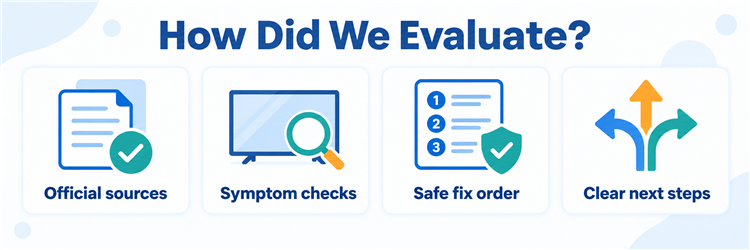
I compared ten competing troubleshooting pages and assessed the fixes by symptom, reversibility, and usefulness on September 10, 2026. This is a research-based guide, not a claim of hands-on device testing.
- Accuracy: Separate player features from provider access.
- Safety: Preserve settings before destructive resets.
- Usefulness: State what each comparison narrows down.
- Limits: Avoid guaranteed fixes or invented performance results.
Final Verdict
Start with the failing symptom and compare one stream across players before rebuilding your setup. Check provider expiry and occupied connections, then isolate the network and playback settings. Preserve a backup before clearing data, and test a minimal configuration before restoring it. Treat EPG, Premium activation, recording, and catch-up as separate problems when live video still works. If the issue remains specific to one app, a compatible alternative can keep you watching while support investigates the evidence.
Top 3 TiviMate Alternatives
- VLC: Start with a simple stream and decoder comparison.
- Sparkle TV: Choose a television guide with optional recording features.
- OTT Navigator: Explore deeper playlist organization and Android playback controls.
FAQs
Why is TiviMate not working today?
Check whether the app itself crashes or just the streams fail. Test several channels, verify your provider account and current server address, and close other sessions. A sudden failure does not establish a universal TiviMate outage.
Does TiviMate Premium include channels?
No. Premium unlocks player features only. Your channel subscription comes from a separate provider. Use the TiviMate account for Premium activation and the provider-issued credentials for playlist access; paying for one cannot repair the other.
Will clearing cache delete my playlists?
Clearing cache normally preserves saved playlists and settings. Clearing app data or uninstalling may remove them. Save credentials and export a backup, where available, to a location that remains accessible after the app is removed.
Why does TiviMate show error 403 or 404?
A 403 response indicates the server refused access; a 404 indicates the requested resource was not found. Check the exact URL and provider restrictions. These codes alone do not establish throttling or prove a VPN is needed.
Why does TiviMate buffer with fast internet?
Speed tests cannot reveal every stream-route problem. Compare another channel and player, close competing streams, and test Ethernet if available. Follow our IPTV buffering guide for network checks before assuming the player needs reinstalling.
Why is the EPG blank while channels play?
Video and guide data can fail independently. Update EPG, check its source assignment, and verify channel identifiers where only some programmes are missing. Correct timezone settings for shifted schedules; reinstalling the whole app is rarely the first step.
What if TiviMate stopped working after an update?
Record the app and device software versions, restart, clear cache, and test one source without custom playback settings. Compare another player. Report reproducible differences to support rather than installing an old APK from an unfamiliar download site.
Where should I download the official TiviMate app?
Use the Google Play listing linked from tivimate.com or the developer’s direct APK link there. The official app targets Android TV devices and is not optimized for phones or tablets. Similarly named streaming-service websites are separate businesses.